
You can invite team members to your WhatsForm workspace to collaborate on forms or simply view data depending on the access level you assign.
Open workspace settings
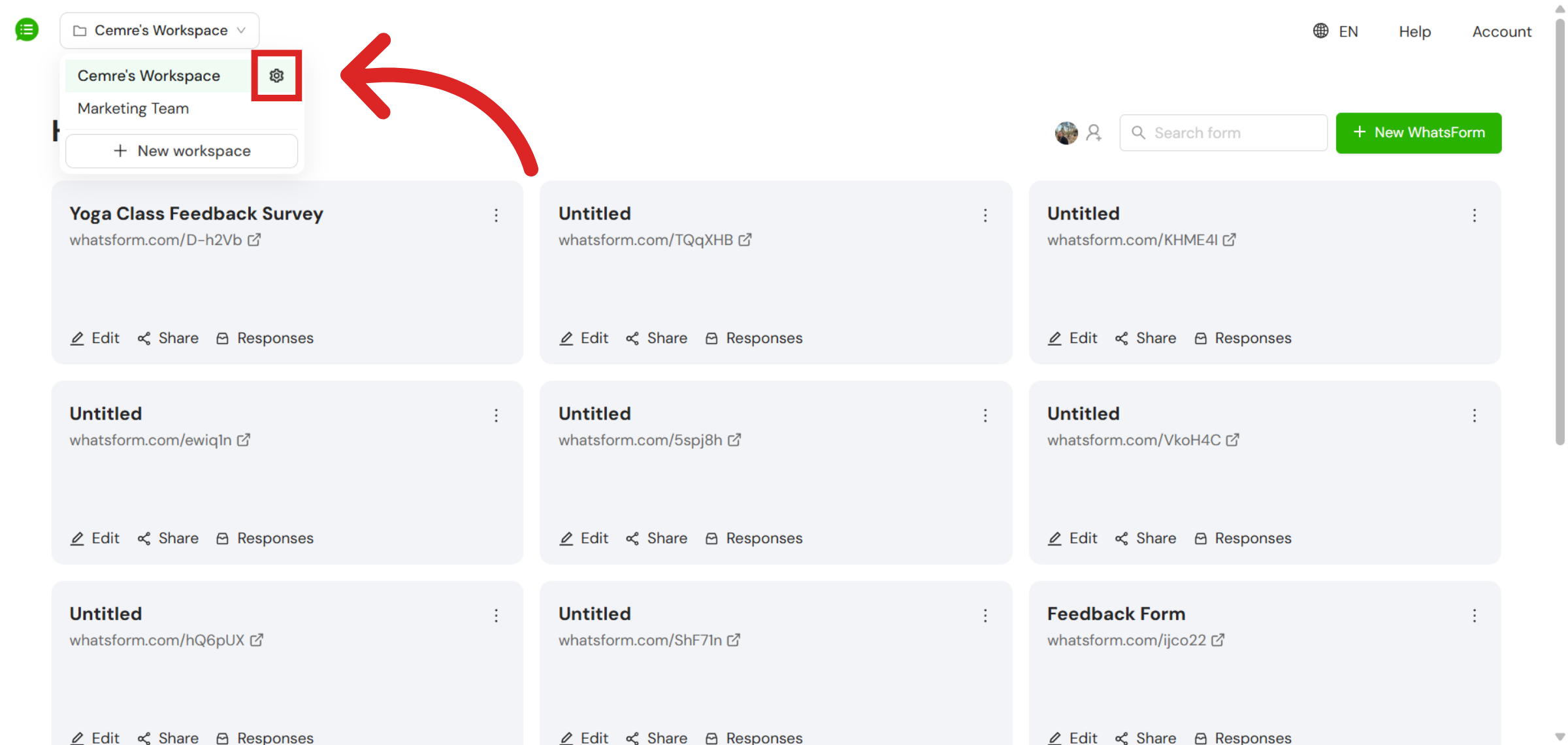
To begin, go to the top-left corner of your dashboard where your workspace name is displayed. Next to the workspace name, you will see a gear-shaped icon. Click on this icon to open the workspace settings menu.
Invite a new member
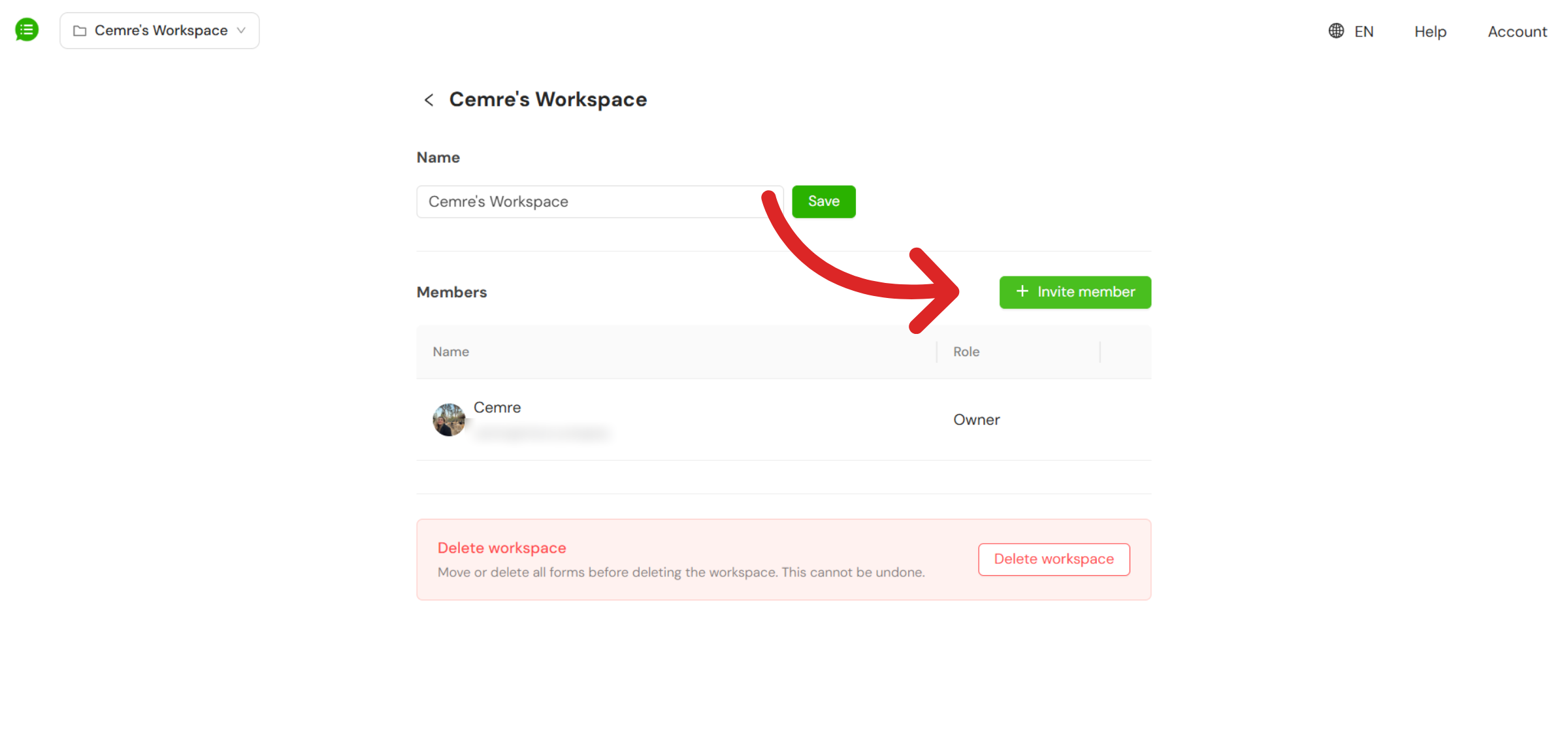
Inside the workspace settings, click on the + Invite Member button. This will open an invitation window where you can add a new team member.
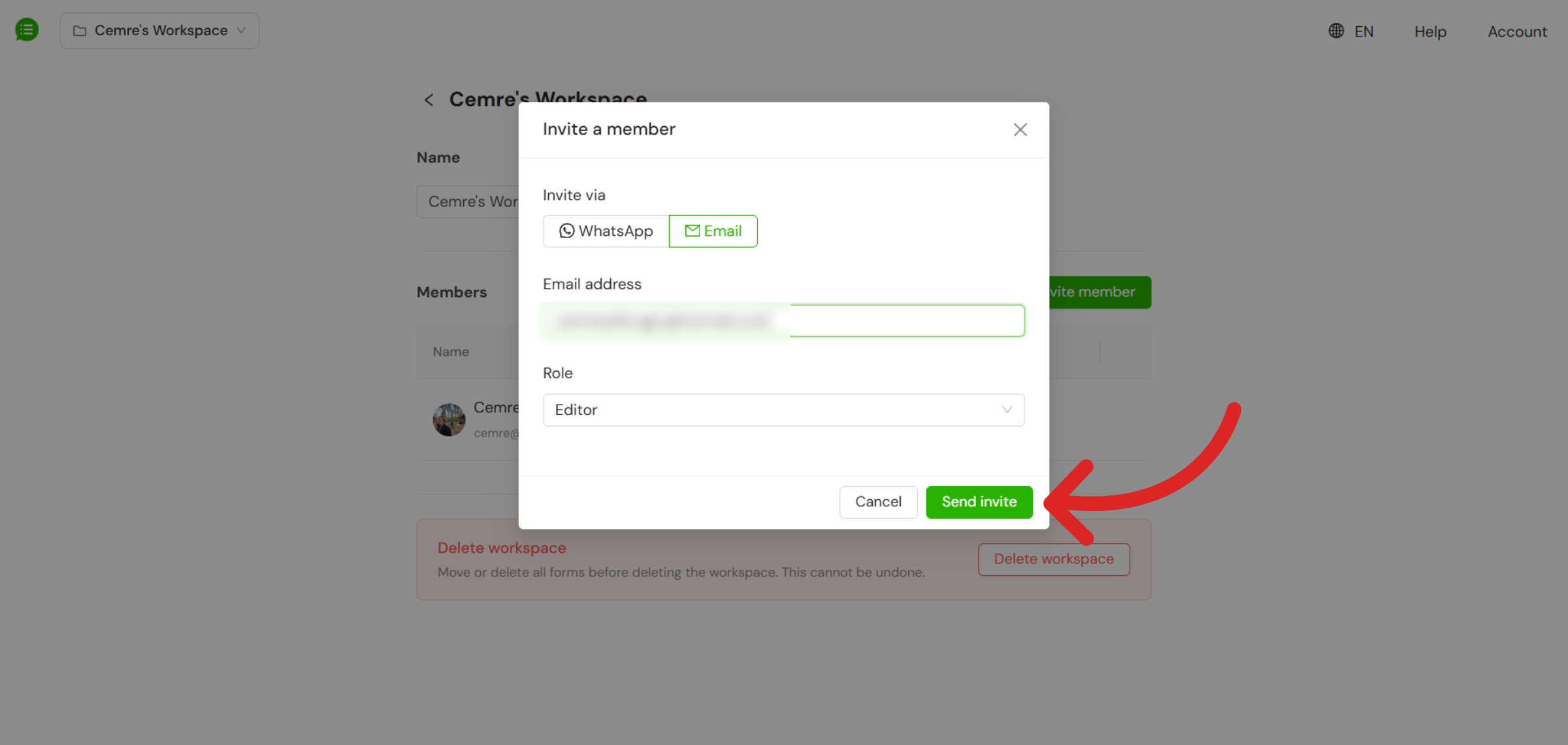
 You can invite a team member using either their WhatsApp number or their Google email address. After entering the contact information, you will need to choose their role. You can assign them as either a Viewer or an Editor depending on the level of access you want to give.
Once the details and role are selected, click on Send Invite. The invitation will then be sent to the user. After sending the invite, the user will have one week to accept it. Until they respond, the invitation will appear as Pending in your workspace member list.
Managing team members
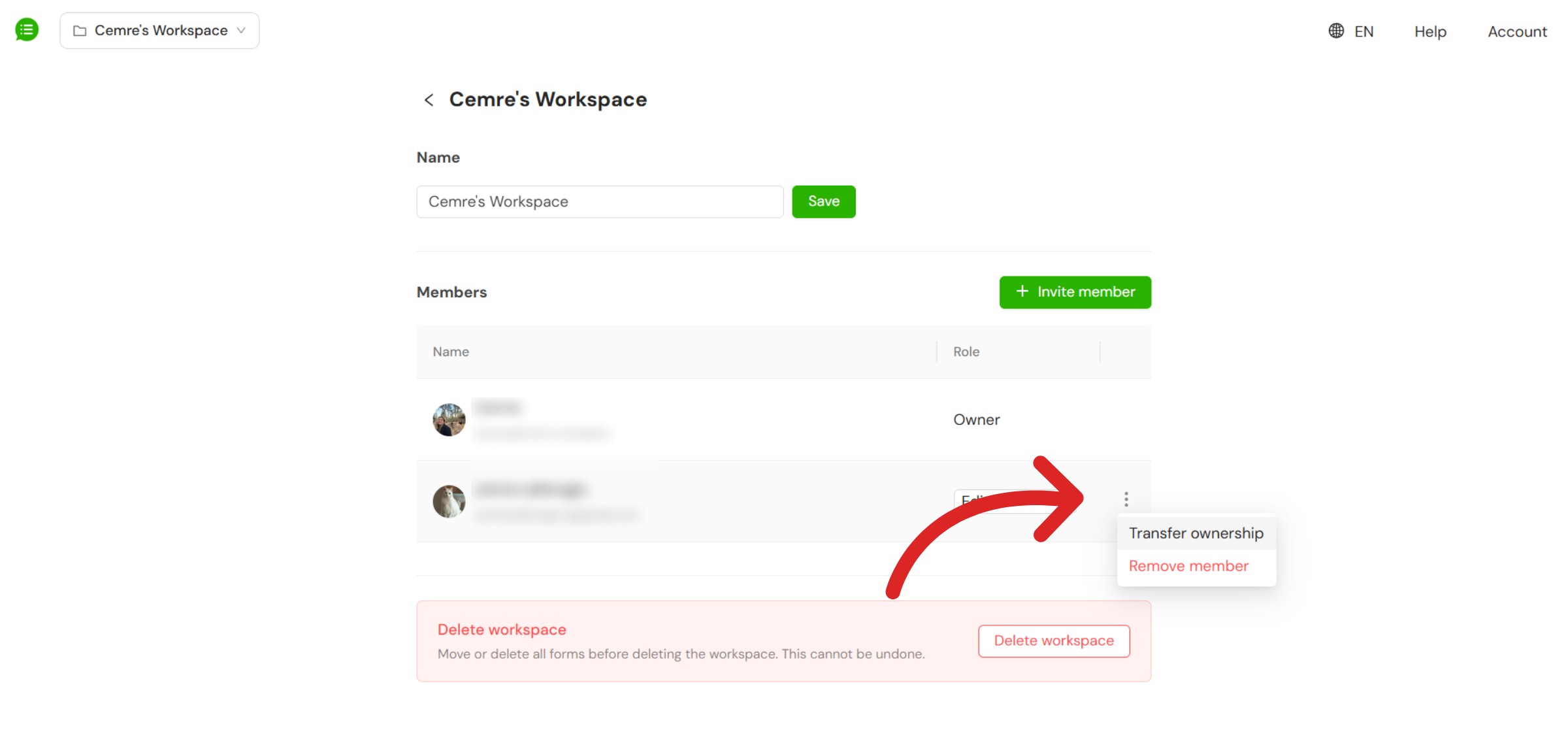
You can change a member’s role at any time by clicking on the role label next to their name.
Click on the three dots next to a member to either transfer workspace ownership to them or remove them from the workspace entirely.
Still need help?
Contact us