How to convert a Google Form to WhatsApp
Responses going to a spreadsheet nobody checks? Here's how to convert your Google Form to a WhatsApp form so every submission lands directly in your chat.

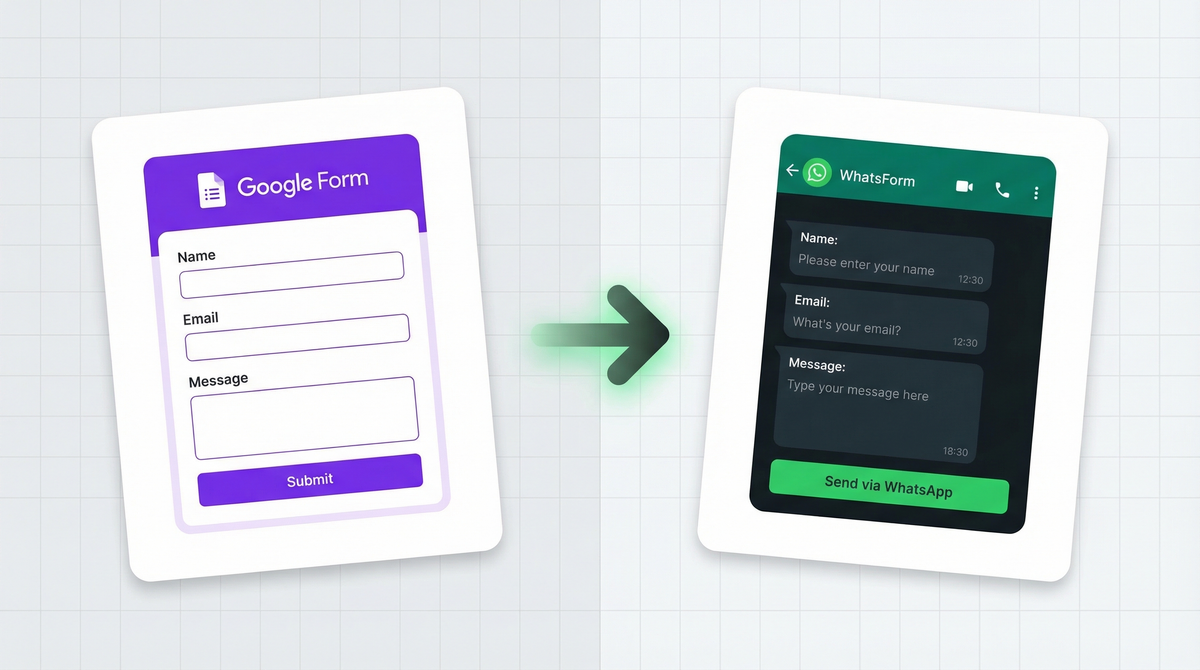
You built a Google Form. It works. People fill it out. Responses land in a spreadsheet. And then nothing happens, because nobody's refreshing that spreadsheet.
Meanwhile, WhatsApp is right there on your phone. That's where you actually talk to customers. That's where they reply. That's where business gets done in 2026.
The fix isn't complicated. You recreate your Google Form as a WhatsApp form, and from that point on, every submission lands directly in your WhatsApp chat. This guide shows you exactly how.
Why businesses switch from Google Forms to WhatsApp
Google Forms made sense when email was the default communication channel. For a lot of businesses, that's no longer true.
WhatsApp has over 2 billion active users. For small businesses, local services, and anyone selling to customers in Asia, the Middle East, Latin America, or Europe, WhatsApp is often the primary channel. People respond to WhatsApp messages faster than emails. Much faster.
The problem with Google Forms isn't the form itself. It's the gap between submission and action. Someone fills out your contact form, the data goes to a sheet, you notice it later, and then you follow up via WhatsApp anyway. That's two unnecessary steps you've been doing for years without questioning them.
A WhatsApp form closes that gap. Submission happens, and the response lands in your WhatsApp immediately. No delay. No missed notifications.
What you lose with Google Forms
Let's be clear-eyed about what Google Forms actually gives you, because this matters when you're deciding whether to switch.
Responses go to email or Sheets, not WhatsApp. If your team lives in Google Workspace, that's fine. If you're a small business owner who checks WhatsApp 40 times a day and email twice a week, it's a problem.
Notifications don't reach you fast enough. You get an email digest or a single notification. That gets buried. WhatsApp notifications behave differently. People actually see them and act on them.
The mobile experience is clunky. Google Forms are designed for desktop. On a phone, they work, but they don't feel native. They don't feel like something a customer would enjoy filling out. For bookings, orders, or any high-intent action, friction matters.
No path back to WhatsApp. Even if someone fills out your Google Form, you still have to go back to WhatsApp to follow up. There's no loop. WhatsApp forms create a natural, continuous conversation.
What you gain with WhatsApp forms
Switching to WhatsApp forms isn't just about changing where responses go. It changes the whole dynamic of the interaction.
Instant notification, right on your phone. When someone submits, you see it immediately in WhatsApp. You can reply, confirm, or follow up in seconds. That speed changes how customers perceive your business.
The customer stays in one place. They submitted via WhatsApp, the confirmation shows up in the same chat, and your reply arrives there too. No "check your email for confirmation." The whole conversation stays in one thread.
Mobile-first by design. WhatsApp forms are built for phones, full stop. Your customers are filling these out on their phones. A form that feels native to mobile converts better than one that doesn't.
You can reply immediately. Because the response is a WhatsApp message, you can answer questions, confirm bookings, or close the sale right there. This kind of responsiveness builds trust fast. Check out how this plays into WhatsApp lead generation if you're doing any sales work. You can even set up auto-replies so customers get an instant response even when you're away.
How to convert your Google Form to WhatsApp, step by step
Here's the practical part. This takes about 15 minutes for a basic form.
Step 1: List your Google Form fields. Open your existing Google Form and write down every question. Note the field type (short answer, multiple choice, etc.) and whether it's required. Don't skip this step. It makes rebuilding much faster.
Step 2: Create a free WhatsForm account. Full disclosure: we built it. WhatsForm is the tool we made specifically for this. Sign up free. No credit card needed to start.
Step 3: Create a new form and add your fields. Click "New Form" and recreate each question from your Google Form. The field types map almost 1:1, which we'll cover in the next section.
Step 4: Connect your WhatsApp number. Go to settings and connect your WhatsApp Business number. WhatsForm will deliver all submissions to that number. This takes about two minutes.
Step 5: Test it. Fill out your own form once. Make sure the response shows up in WhatsApp the way you expect. Adjust anything that doesn't look right.
Step 6: Replace your old form link. WhatsForm gives you a shareable link, a QR code, and an embed option. Swap out the Google Form link wherever you've shared it. Done.
For a more detailed walkthrough with screenshots, see our help article on converting Google Forms.
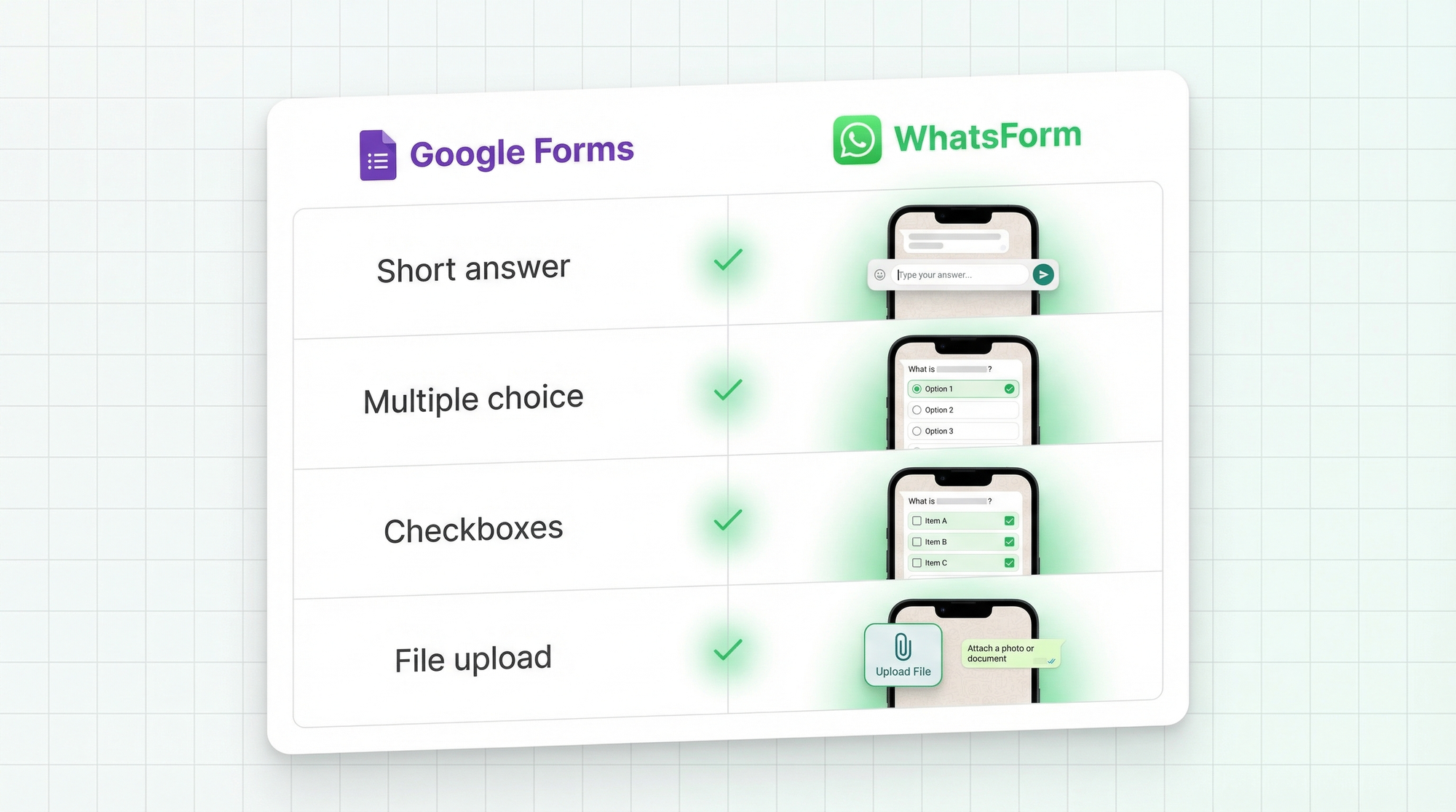
Field type mapping: Google Forms to WhatsForm
This is where most people get nervous about switching. It's actually simpler than it looks.
| Google Forms field | WhatsForm equivalent |
|---|---|
| Short answer | Text field |
| Paragraph | Long text |
| Multiple choice | Radio buttons |
| Checkboxes | Multi-select |
| Dropdown | Dropdown |
| File upload | File upload |
| Date | Date picker |
| Time | Time picker |
| Linear scale | Rating |
Everything maps 1:1. The one worth calling out is file upload. WhatsForm's file upload is reliable on mobile. Google Forms' file upload requires the respondent to be signed into a Google account, which blocks a lot of people. WhatsForm doesn't have that restriction.
Features Google Forms doesn't have
Once you've moved over, you'll notice things that simply aren't possible with Google Forms.
WhatsApp delivery, built in. This is the whole point. Every submission arrives as a WhatsApp message to your number, formatted cleanly so you can read it at a glance.
Payment collection inside the form. You can accept payments directly inside WhatsForm. Deposits, full payments, booking fees. Google Forms can't do this at all. It's a separate step with a separate tool.
Conditional logic. Show or hide fields based on what someone answered earlier. Build branching paths that make the form feel personal. All responses still come to you on WhatsApp.
Custom branding. Your logo, your colors, your domain. Google Forms gives you a color theme and a header image. WhatsForm gives you proper brand control, which matters when you're embedding this on a website or sharing it with customers.
QR codes for offline sharing. Generate a QR code for your form and print it on flyers, menus, business cards, or your shop counter. Customer scans it, fills in the form, you get the WhatsApp message. Great for local businesses. Check out our free WhatsApp tools for more ways to connect with customers.
Website embedding without losing WhatsApp delivery. Embed your form directly on any webpage. Responses still come to WhatsApp. You get a native website experience and a WhatsApp backend.
If you're comparing WhatsApp against email more broadly, this comparison on WhatsApp vs email lead generation is a useful read.
Keep Google Sheets if you want
Here's something people miss: you don't have to choose between WhatsApp notifications and spreadsheets.
WhatsForm can export responses to Google Sheets. So you get the instant WhatsApp notification for every submission, and all responses also sync to a sheet for your records, reporting, or team visibility.
You get both. WhatsApp delivery for real-time response, Sheets for structured data. Nobody on your team loses their spreadsheet view. See the export guide here to set it up.
This is the setup most teams end up on. The person managing customer relationships lives in WhatsApp. The person doing analysis lives in Sheets. Everyone gets what they need from the same form.
If you're running an e-commerce or food business, see how to collect orders on WhatsApp for a practical example of this workflow in action.
Try it free
Head to the WhatsForm Google Form migration page to get started. The free plan lets you create forms and receive responses on WhatsApp with no credit card required.
For a detailed walkthrough, check our help center guide on step-by-step conversion guide.
If you manage customer conversations on mobile, grab the app:
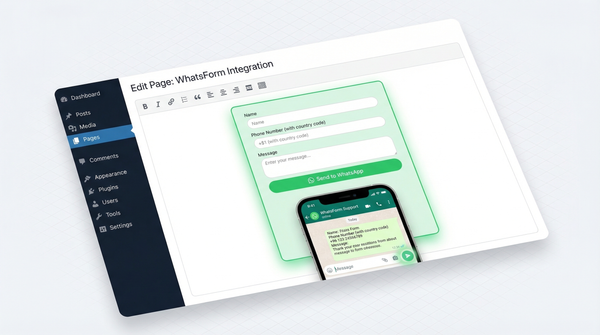
Running WordPress? The WhatsForm WordPress plugin lets you drop your form onto any page in a couple of clicks.
Your Google Form probably does its job. But if WhatsApp is where you actually talk to customers, your forms should be there too.