How to set up WhatsApp auto reply for your business
Auto replies acknowledge customers. But the real unlock is combining them with a WhatsApp form so you have all the context before you even respond.

Every business owner knows the feeling. You're in a meeting, at lunch, asleep. Your phone buzzes. A customer messaged you on WhatsApp. By the time you see it, 2 hours have passed. They've already moved on to your competitor.
Auto replies are your first line of defense. They're not perfect, but they buy you time and set expectations. Here's how to set them up properly, and then how to make them actually useful.
Why auto replies matter
Customers expect fast responses. Studies show that 90% of customers rate an "immediate" response as important when they have a service question. On WhatsApp, "immediate" means minutes, not hours.
You can't be online 24/7. But an auto reply can be. It tells customers you received their message, sets expectations for when you'll respond, and keeps them from wondering if their message even went through.
It's the difference between a customer who waits patiently and one who messages three competitors while waiting for you.
How to set up auto reply on WhatsApp Business
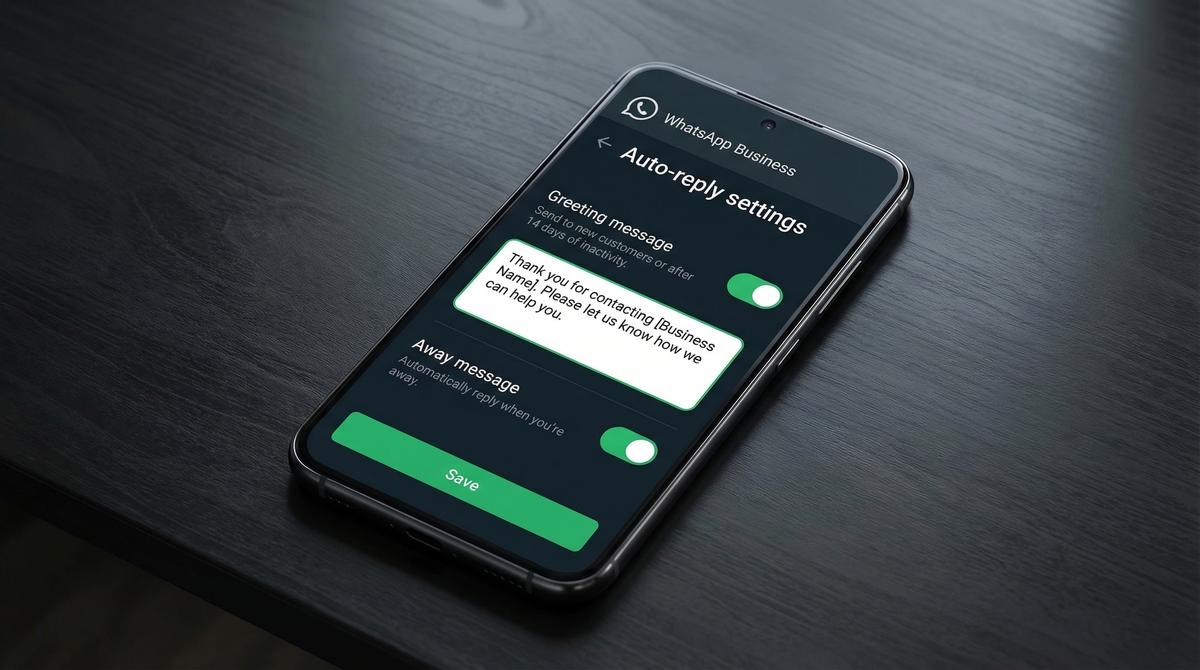
WhatsApp Business gives you two types of auto replies: Greeting Messages (sent to new contacts) and Away Messages (sent when you're offline). Here's how to set up both.
Greeting message (for new customers)
- Open WhatsApp Business and tap the three dots (menu) in the top right
- Go to Settings > Business tools > Greeting message
- Toggle "Send greeting message" on
- Tap the pencil icon to edit the default message
- Set who receives it: new contacts, contacts not in your address book, or everyone
- Tap Save
Away message (for when you're offline)
- Go to Settings > Business tools > Away message
- Toggle "Send away message" on
- Edit the message text
- Set your schedule: Always, Custom Schedule, or Outside of business hours
- Choose who receives it
- Tap Save
That's it. Both will now send automatically whenever the conditions are met.
Auto reply message examples
The default WhatsApp greeting is generic. Here are some templates you can actually use.
For a service business (plumber, electrician, cleaner):
"Hi! Thanks for reaching out. We typically respond within 2 hours during business hours (Mon-Sat, 9am-6pm). To help you faster, let us know what you need and your location."
For an online store:
"Hi! Thanks for messaging [Store Name]. Our set up team routing will get back to you shortly. For order status, please share your order number."
For a restaurant:
"Thanks for contacting [Restaurant Name]. We're open daily 11am-10pm. For reservations, please let us know the date, time, and number of guests."
For a coach or consultant:
"Hey! Thanks for reaching out. I respond to all messages within 24 hours. If you're interested in working together, I'd love to learn more about what you're looking to achieve."
For a clinic or healthcare provider:
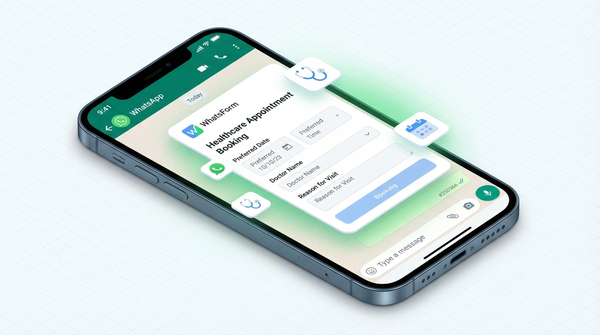
"Thank you for contacting [Clinic Name]. For WhatsApp booking templates, please share your preferred date and the nature of your visit. Our team will confirm availability shortly."
After hours message:
"Thanks for your message! We're currently closed but will respond first thing in the morning. Our hours are Mon-Fri, 9am-6pm."
The limitation of auto replies
Here's the honest truth: auto replies acknowledge but don't move things forward.
When a customer messages "I need a quote for a kitchen renovation," your auto reply says "Thanks, we'll get back to you soon." Then what? You respond hours later asking for their budget, timeline, location. They answer. You ask a follow-up. Another exchange. By message 5, you might finally have enough context to give them a real answer.
Auto replies buy time. They don't save time. Every back-and-forth is time both you and your customer spend. Most of that information could be collected upfront if you just asked the right questions from the start.
The upgrade: put your WhatsApp form link in the greeting message
This is the part that actually changes how your business operates.
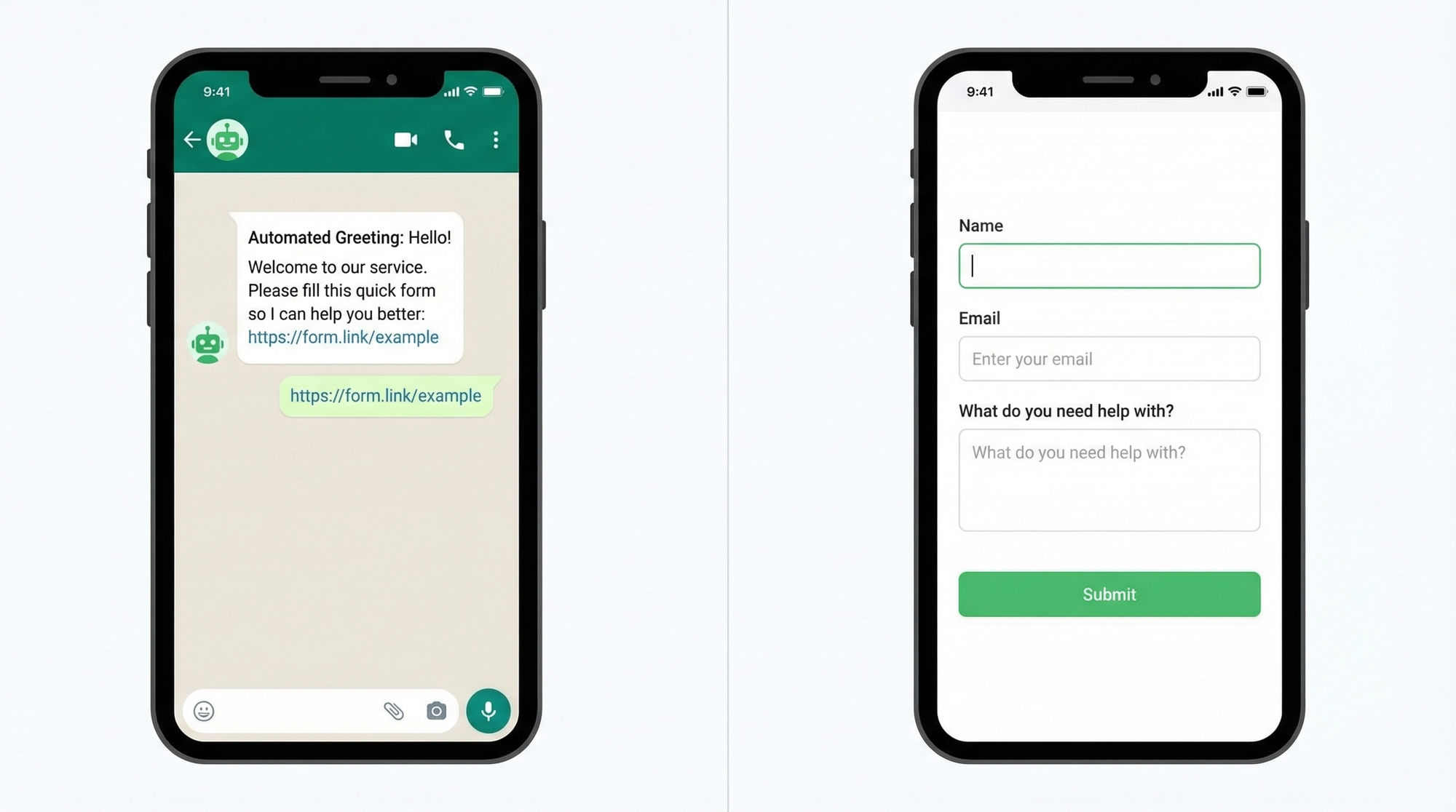
Instead of just saying "we'll get back to you," your greeting message can include a link to a quick form. The customer fills it out. By the time you actually read the message, you already know their name, what they need, their budget, their timeline. Everything.
You go from "Hi, how can I help?" to "Hi Sarah, I saw you're looking for a quote on a 3-bedroom renovation with a budget of around $15K. Here's what I'd suggest..."
That's a completely different conversation. And it happens automatically.
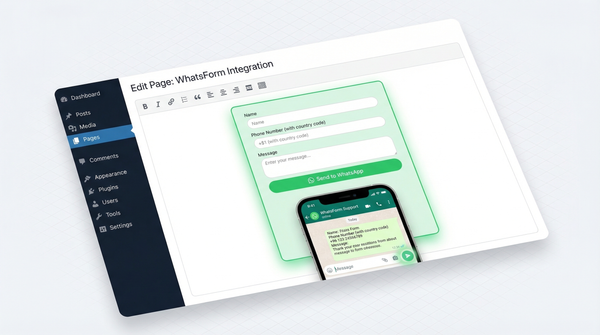
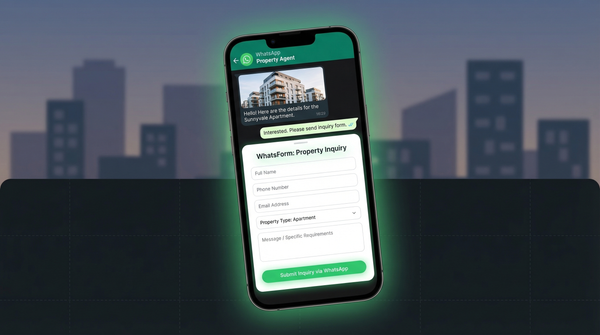
Full disclosure: we built WhatsForm for exactly this. It lets you create forms that work directly inside WhatsApp. No links to external websites, no broken mobile experiences. The customer just fills out a native WhatsApp conversation.
Here's what a greeting message with a form looks like:
"Hi! Thanks for reaching out to [Business Name]. To help you faster, please take 60 seconds to fill out this quick form: https://whatsform.com/yourform. I'll get back to you with a proper answer within 2 hours."
That one change can turn your first WhatsApp message into a qualified generate leads on WhatsApp instead of an unknown inquiry.
Quick reply shortcuts
Beyond greeting and away messages, WhatsApp Business also has Quick Replies. These are canned responses you can trigger with a "/" shortcut while chatting. Think of them as your personal message templates for common situations.
To set them up:
- Go to Settings > Business tools > Quick replies
- Tap the "+" button to create a new one
- Write your message (you can include links here)
- Set a keyboard shortcut (like "/quote" or "/thanks")
- Tap Save
During a chat, type "/" and the shortcut, then hit send. The full message goes out instantly.
The smart move: create a quick reply that includes your WhatsForm link. So when someone asks for a quote, you type "/quote" and they instantly get your form link. No copy-pasting, no remembering the URL.
Set up a few of these for your most common responses and you'll cut your response time in half.
WhatsApp Business API auto replies
Everything above works with the free WhatsApp Business app. But if you're handling high volumes, hundreds of conversations a day, there's a different path: the WhatsApp Business API.
The API lets you build fully automated workflows. Chatbots, conditional responses, CRM integrations, the works. It's powerful, but it comes with complexity. You need a Business Solution Provider (BSP) like Twilio or 360dialog, there are per-message fees, and setup takes real technical effort.
For most small businesses, the app is all you need. Save the API for when you're genuinely overwhelmed, not when you just want fancier auto replies.
Start simple, then upgrade
Here's the practical path:
- Set up your Greeting Message and Away Message today (takes 5 minutes)
- Make the greeting message actually useful by including what customers should do next
- Add your WhatsForm link to the greeting message so you collect info upfront
- Create 3-5 Quick Reply shortcuts for your most common responses
You'll respond to fewer "I need help with X" messages and more "Here's everything you need, here's my quote" conversations.
For a detailed walkthrough, check our help center guide on creating a WhatsApp form.
That's the real ROI of auto replies done right.
If you want to try adding a form to your WhatsApp greeting message, WhatsForm is free to start. Takes about 10 minutes to set up your first form and get the link.