How to embed a WhatsApp form on WordPress
WordPress powers 40% of the web. Here are three ways to add a WhatsApp form to your WordPress site and start turning visitors into conversations.

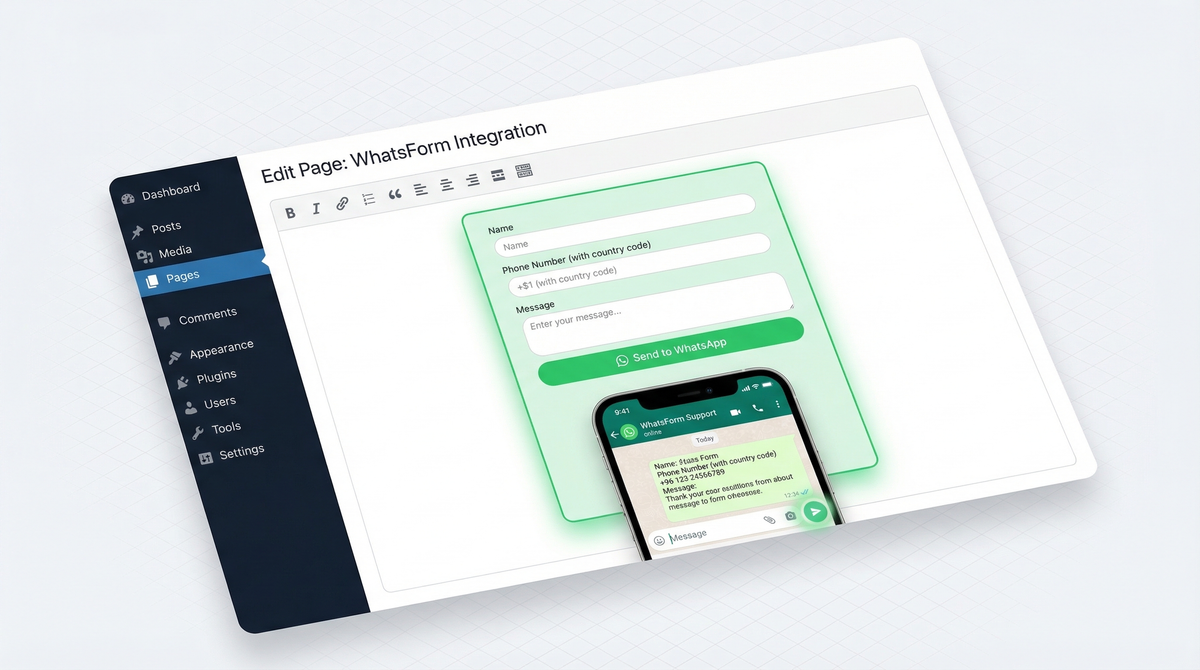
WordPress powers more than 40% of all websites on the internet. If you're running one of them and still relying on a contact form that sends leads to your inbox, you're leaving a lot of conversions on the table.
People respond to WhatsApp. They don't respond to emails. A WhatsApp form gets you into a conversation instantly. No waiting 24 hours for a reply, no leads going cold in a neglected inbox.
In this guide, we'll walk through three ways to add a WhatsApp form to your WordPress site. Pick the one that fits your setup.
Why add a WhatsApp form to WordPress
A standard contact form sends a submission to your email. Then you have to reply, wait, follow up, and hope the person is still interested. That whole loop can take days.
A WhatsApp form skips the email middleman entirely. When someone fills out the form and hits submit, the conversation opens directly in WhatsApp. You're already in the chat before the lead has time to cool off.
There's also the trust factor. WhatsApp feels personal. For service businesses, consultants, local shops, and anyone selling something that needs a conversation, that personal touch converts better than a generic form. WhatsApp consistently outperforms email for lead generation precisely because of this.
Method 1: Form to Chat WordPress plugin
If you want a fully native WordPress experience, this is the cleanest option. The Form to Chat plugin is built specifically for WordPress and lets you add a WhatsApp form to any page or post without touching code.
Here's how to set it up:
- Go to your WordPress admin and navigate to Plugins > Add New Plugin.
- Search for "Form to Chat" and install it.
- Activate the plugin. A new menu item will appear in your sidebar.
- Open the plugin settings and enter your WhatsApp number. This is where form submissions will land.
- Customize the form fields: name, phone, message, or any custom fields you need.
- Set a pre-filled message template. For example: "Hi, I filled out your form. My name is {name} and I need help with {message}."
- Use the provided shortcode to place the form anywhere on your site.
The plugin also has a mobile app if you want to manage your WhatsApp leads on the go. Available on Android and iOS.
For a detailed walkthrough, check out the help article on adding a WhatsApp form to WordPress.
Method 2: Embed WhatsForm via HTML
If you want more control over how the form looks and behaves, embedding WhatsForm directly via HTML is the way to go. Full disclosure: we built WhatsForm, and this method is what we'd recommend for most WordPress users who want flexibility.
Here's the process:
- Create your form at WhatsForm. Add your fields, set your WhatsApp number, customize the colors.
- Once your form is ready, click Share then go to the Embed tab.
- Copy the embed code snippet. It's a simple iframe or script tag.
- In your WordPress page editor (Gutenberg), add a Custom HTML block where you want the form to appear.
- Paste the embed code into the block.
- Preview the page. The form should render inline with your content.
If you're using a classic editor or a page builder like Elementor, look for an HTML widget and paste the code there. The process is the same. For more detail, see our guide on embedding WhatsForm on a website.
This method works great when you want the form on a specific landing page or blog post, but not necessarily everywhere on the site.
Method 3: WhatsForm widget
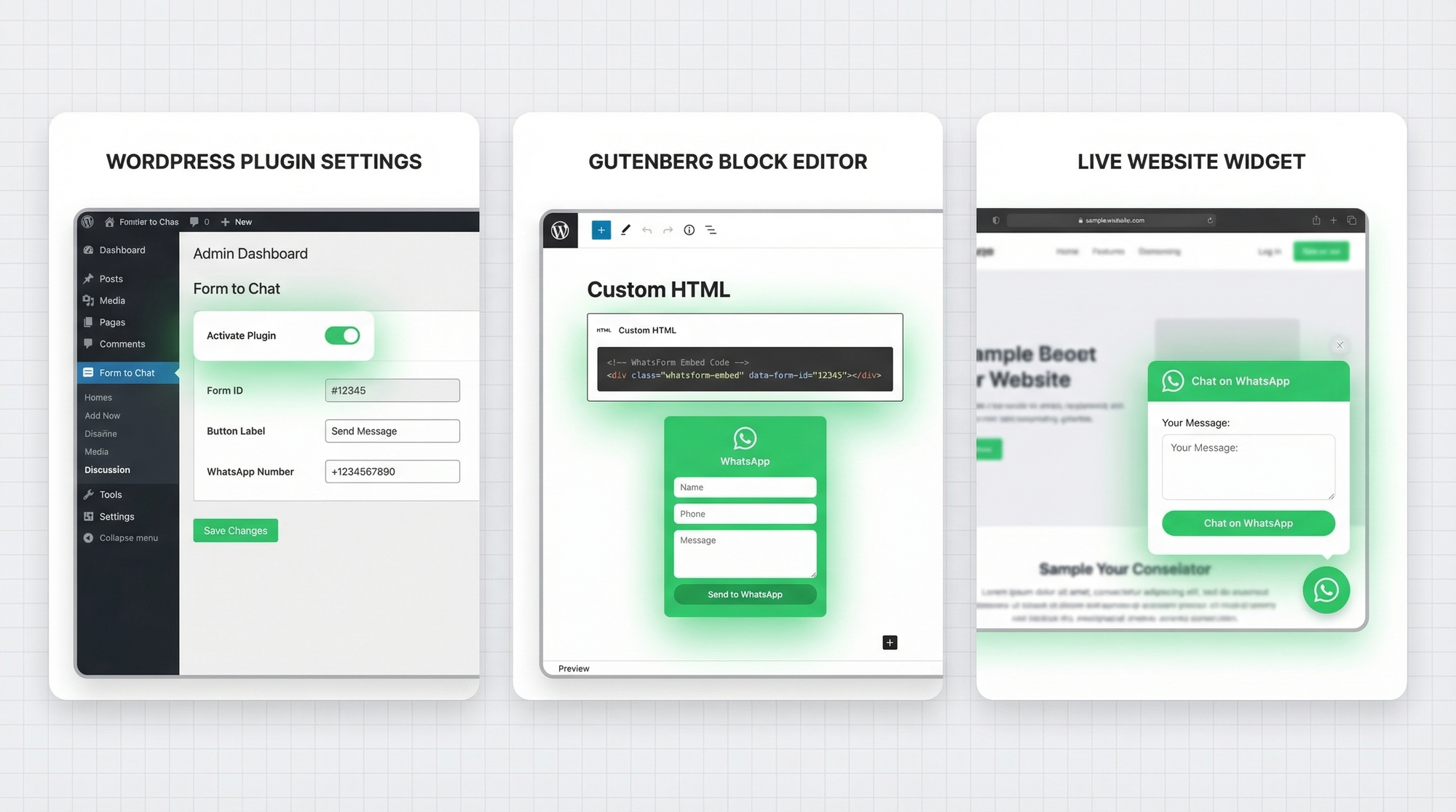
The widget is the most low-effort option with the broadest reach. Instead of placing a form inside a specific page, you add a floating button that appears on every page of your WordPress site. When a visitor clicks it, the WhatsApp form pops up.
To set it up:
- In WhatsForm, go to your form settings and open the Widget tab.
- Copy the widget script snippet.
- In WordPress, go to Appearance > Theme File Editor (or use a plugin like WPCode) and paste the snippet just before the closing
</body>tag in your theme'sfooter.php. - Save. The floating WhatsApp button will now appear on every page of your site.
You can also control when the widget appears: after a scroll percentage, after a time delay, or on specific pages only. Check the widget setup guide for all the options.
If you want the widget on your site without touching theme files, use the WPCode plugin. It lets you inject scripts site-wide without editing PHP files. And if you want to explore more widget options, see the adding a WhatsApp button to your site.
Which method for which situation
Here's how to think about it:
- Form to Chat plugin: Best if you want everything managed inside WordPress, prefer a GUI setup, and don't want to deal with embed codes at all.
- HTML embed: Best for specific pages. A dedicated contact page, a pricing page, or a campaign landing page where you want the form inline.
- WhatsForm widget: Best for site-wide presence. Every visitor sees the option to reach you via WhatsApp without you needing to add anything to individual pages.
Many businesses use two methods together: an embedded form on key conversion pages, plus the widget as a fallback for visitors who land elsewhere on the site.
Customizing your form for WordPress
Whichever method you use, make sure the form fits your site. A green form dropped on a dark-themed site looks jarring. A few things to adjust:
- Colors: In WhatsForm, you can change the button color, form background, and text. Match your site's primary color or keep it WhatsApp green if that's what your audience recognizes.
- Width: Set a max-width on the embed container so the form doesn't stretch edge-to-edge on wide screens. Something like
max-width: 600px; margin: 0 auto;in the wrapping element usually works well. - Mobile: WhatsForm is responsive by default, but always test on a phone. WordPress themes sometimes add padding that can squish the form on small screens.
- Fields: Keep them minimal. Name and message is usually enough. Every extra field drops conversion. If you need more information, collect it inside the WhatsApp conversation after the initial contact.
Connecting to Google Sheets
WhatsForm can send every form submission to a Google Sheet automatically. This is useful if you're already using Google Analytics or Search Console to track traffic. Having your lead data in the same Google ecosystem makes it easier to see which pages are generating the most WhatsApp conversations.
To enable it, go to your WhatsForm dashboard, open the form settings, and connect Google Sheets under the Integrations tab. You'll be asked to authorize access to your Google account. Once connected, every new submission creates a new row with the form data, timestamp, and source.
From there, you can build a simple Google Sheets dashboard, set up email alerts for new rows, or connect to a CRM via Zapier or Make. For full instructions, see the guide on exporting WhatsForm responses.
Going live
For a detailed walkthrough, check our help center guide on WordPress integration guide.
Before you share the page, run through this quick checklist:
- Test on mobile. Most of your visitors are on phones. Open the page on your phone, fill out the form, and make sure the WhatsApp conversation opens correctly.
- Test on desktop. Confirm the form renders cleanly, isn't cut off, and submits properly.
- Check load speed. The embed code adds a small script to your page. Run a quick PageSpeed Insights check to make sure it's not adding noticeable load time.
- Share the page. Add it to your navigation, link to it from your homepage, and update your social bio links to point there.
If you've already added a WhatsApp button to your website and want to upgrade to a full form, this is a natural next step. See our post on adding a WhatsApp button to any website for context on how these pieces fit together.
Adding a WhatsApp form to WordPress takes less than 15 minutes. The difference it makes in how fast you can turn a visitor into a conversation is worth every minute of setup.