How to add a WhatsApp button to your website
Three ways to add a WhatsApp button to your website. From a simple HTML link to a WordPress plugin to a floating widget that captures leads before starting the chat.

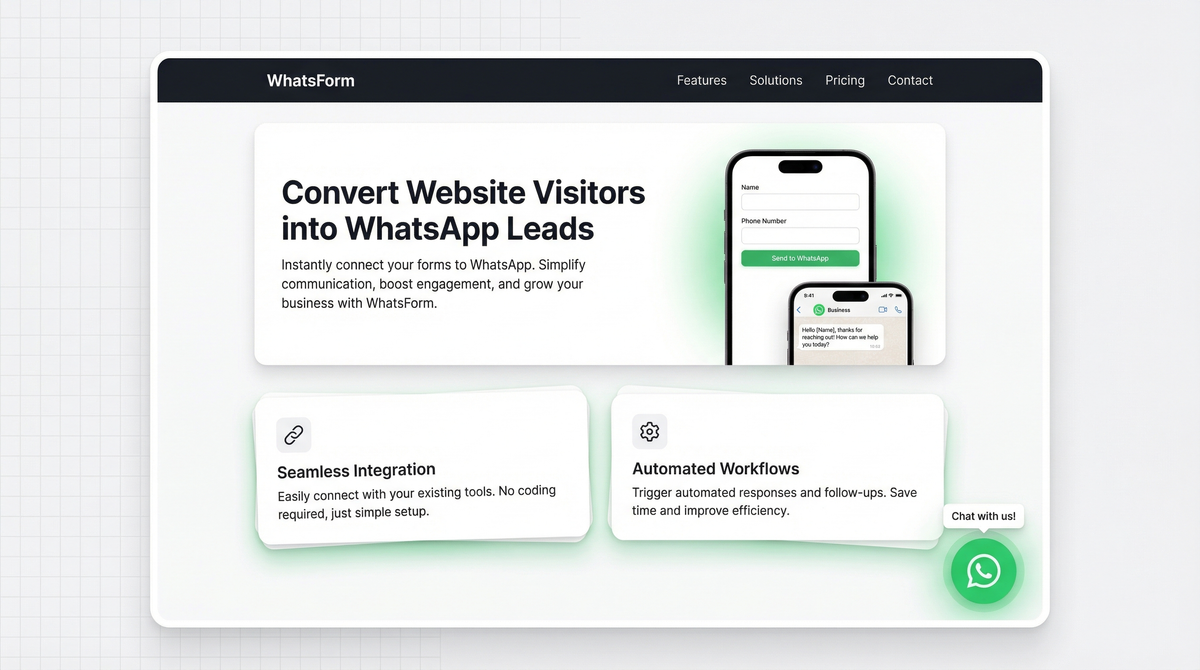
If someone lands on your website and wants to reach you, what do they do? Fill out a contact form and wait? Send an email and hope for a reply in 24 hours?
Most visitors won't bother. They'll just leave.
A WhatsApp button changes that. One tap and they're in a live conversation with you. No friction, no waiting, no guessing. That's why adding a WhatsApp button is one of the simplest things you can do to improve conversions on your site.
Here's how to do it, three ways, from the most basic to the most powerful.
Why add a WhatsApp button to your website
WhatsApp has over 2 billion active users. Chances are, your customers are already on it. They use it with friends, family, and businesses they trust. When you add a WhatsApp button, you're meeting them where they already are.
Contact forms have a conversion problem. They feel formal, slow, and impersonal. WhatsApp feels instant and human. Studies consistently show that chat-based contact options outperform forms for lead generation, especially for services, local businesses, and anything where trust matters. If you're curious about the difference, we compared WhatsApp contact forms vs traditional website forms in detail.
There's also the speed factor. A message sent on WhatsApp gets seen. A form submission gets lost in an inbox. When you reply fast, you win the sale. It's that simple.
And if you're collecting leads? You get a real phone number tied to a real person, not a throwaway email address. Not sure what a WhatsApp form actually is? Here's our explainer on WhatsApp forms to get you up to speed.
Method 1: Simple HTML link
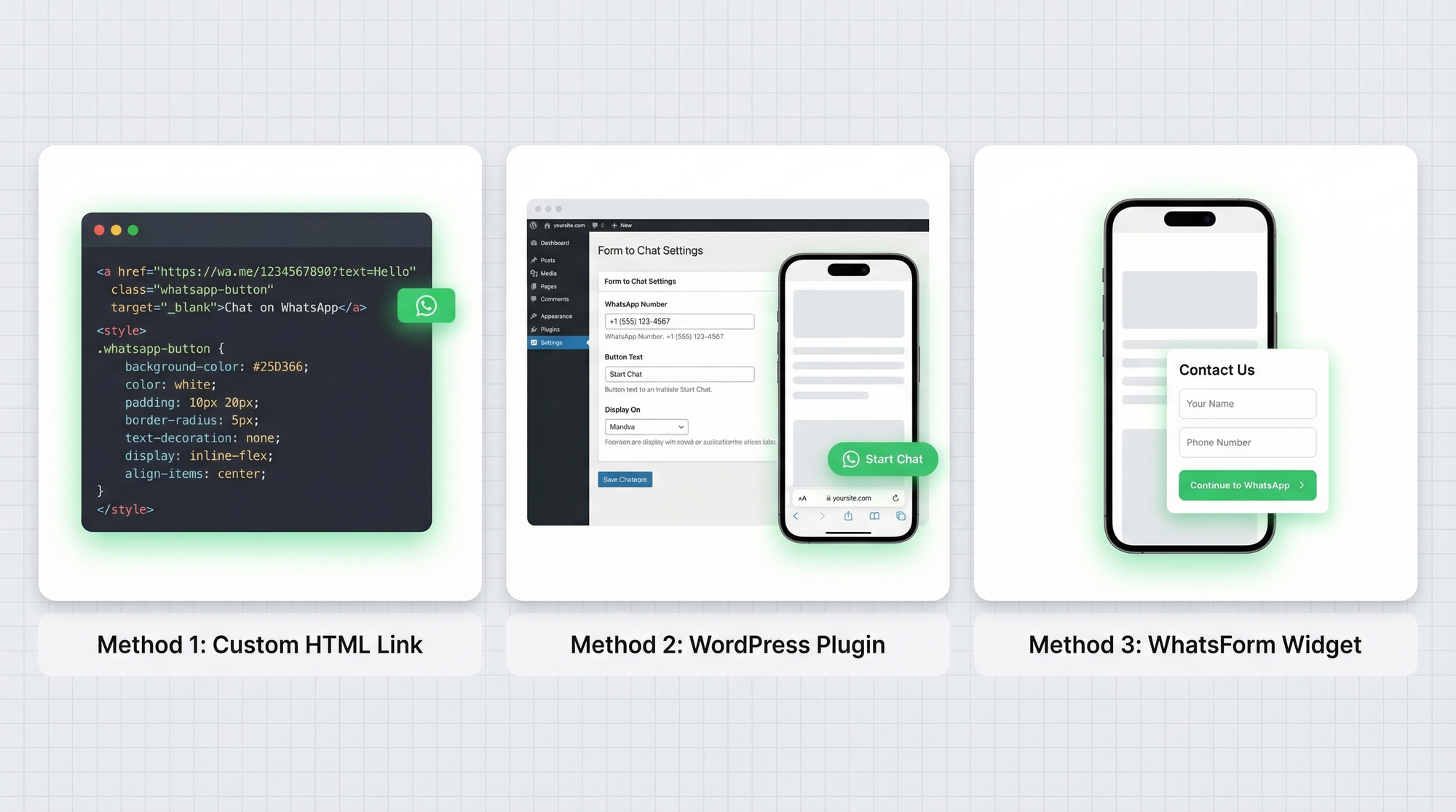
If you just want a basic WhatsApp button on your website, you can do it with a few lines of HTML and CSS. No plugins, no tools, no dependencies.
Here's how it works. WhatsApp has a universal link format: https://wa.me/YOURNUMBER. Replace YOURNUMBER with your full phone number including country code, no plus sign, no spaces. So if your number is +91 98765 43210, your link is https://wa.me/919876543210.
Drop this into your HTML:
<a href="https://wa.me/919876543210"
   target="_blank"
   class="whatsapp-btn">
  Chat on WhatsApp
</a>
Then style it with CSS to make it look like a proper green button:
.whatsapp-btn {
  display: inline-flex;
  align-items: center;
  gap: 8px;
  background-color: #25D366;
  color: white;
  padding: 12px 24px;
  border-radius: 50px;
  text-decoration: none;
  font-weight: 600;
  font-size: 16px;
}

.whatsapp-btn:hover {
  background-color: #128C7E;
}
For a floating button that stays fixed in the bottom-right corner of every page, wrap it in a fixed-position container:
.whatsapp-float {
  position: fixed;
  bottom: 24px;
  right: 24px;
  z-index: 9999;
}
This method works on any website, any platform, any tech stack. It's the fastest path from zero to a working WhatsApp button.
Best for: Static websites, custom-built sites, and anyone comfortable with HTML.
Method 2: WordPress plugin
If you're on WordPress and don't want to touch code, there's a plugin for this.
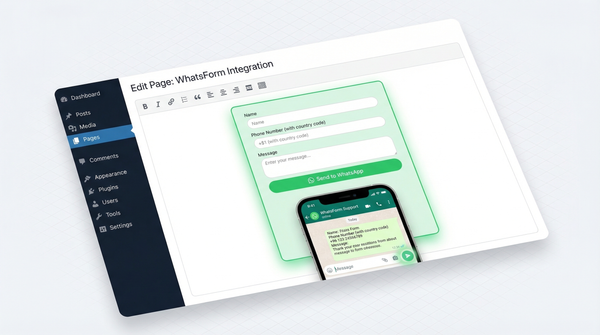
Form to Chat is a free WordPress plugin that adds a WhatsApp button to your site. You configure your phone number and button settings in the WordPress dashboard, and the plugin handles the rest. No coding required.
You can set a custom welcome message, control where the button appears (all pages, specific pages, or posts only), and style it to match your site. The plugin also has options for setting business hours so the button only shows when you're available.
To install it: go to WordPress Dashboard, Plugins, Add New, search "Form to Chat", install and activate. Then head to the plugin settings, enter your WhatsApp number, and you're live.
It's quick, it's free, and it works out of the box. You can also manage your WhatsApp conversations on the go with the Android app or iOS app.
Best for: WordPress sites where you want a simple button with no code.
Method 3: WhatsForm widget
The HTML link and WordPress plugin both do the same thing: they open WhatsApp directly. That works, but it skips a step that matters for business. You don't know who's contacting you until after the conversation starts.
The WhatsForm widget takes a different approach. Instead of opening WhatsApp immediately, it shows a small form first. The visitor enters their name, phone number, or whatever fields you need. Then it opens WhatsApp with that context already loaded.
You get a qualified lead. They get a faster, more personal conversation. Everyone wins.
Full disclosure: we built it. The WhatsForm widget is a floating button you add to any website. It sits in the corner of your page, and when someone clicks it, they see a branded form that captures their info before routing them to WhatsApp.
Setup takes about two minutes. Create your form at WhatsForm, go to the embed settings, copy one line of script, and paste it before the closing </body> tag on your site. Full instructions in our help article on adding the widget.
If you're on WordPress, there's also a dedicated guide for WordPress embedding.
Best for: Businesses that want leads, not just chats.
Which method should you choose
Here's the honest breakdown:
Simple HTML link if you just want a quick tap-to-chat button and you're comfortable with a few lines of code. Zero dependencies, works everywhere, done in 10 minutes.
WordPress plugin if you're on WordPress and want a no-code solution. The Form to Chat plugin is reliable and free.
WhatsForm widget if you care about lead capture. If you want to know who's reaching out before the chat starts, this is the right tool. It adds one step for the visitor, but that step gives you data that makes every follow-up better.
For most businesses taking WhatsApp seriously, the widget is the right move. If you're running an online store, check out our guide on using WhatsApp for ecommerce to see how the button fits into a full sales flow. And check out our roundup of free WhatsApp tools to see what else you can add to your setup.
Customizing your button
Whichever method you choose, a few customizations make a big difference.
Position. Bottom-right is the standard. It's where users expect to find chat buttons. Don't put it anywhere else unless you have a strong reason.
Color. Green (#25D366) is the WhatsApp brand color. Use it. Visitors recognize it instantly and know exactly what the button does.
Welcome text. If your widget or plugin supports a tooltip or label, use it. "Chat with us" or "Ask us anything" next to the button increases clicks. A plain icon with no label gets ignored more often.
Mobile vs desktop. On mobile, tapping a WhatsApp link opens the app directly. On desktop, it opens WhatsApp Web or prompts the user to use their phone. Both work fine, but if most of your traffic is mobile (check your analytics), the experience is particularly smooth.
Show/hide rules. Consider hiding the button on checkout pages or during specific flows where you don't want distraction. Most plugins and widgets support page-level visibility controls.
Pre-filled messages
Here's a small trick that makes a big difference: pre-populate the first message so visitors don't have to think about what to say.
Add a ?text= parameter to your wa.me link, URL-encoded. For example:
https://wa.me/919876543210?text=Hi%2C%20I%27d%20like%20to%20know%20more%20about%20your%20pricingWhen someone taps that link, WhatsApp opens with the message already typed. All they have to do is hit send.
This works especially well when the button is on a specific page. If it's on your pricing page, pre-fill "Hi, I have a question about pricing." If it's on a product page, pre-fill the product name. Context makes conversations start faster and close faster.
You can also use this to route conversations. Pre-fill different messages on different pages to tell you immediately where the lead came from.
Track conversions
Adding a WhatsApp button is only useful if you can measure whether it's working. Here are two ways to track it.
UTM parameters. Add UTM tags to any WhatsApp links that go to landing pages or forms. For example, if your button links to a WhatsForm URL, append ?utm_source=website&utm_medium=widget&utm_campaign=whatsapp-button. You'll see the traffic in Google Analytics under Acquisition.
Google Analytics click events. For direct wa.me links, you can fire a GA4 event when the button is clicked. Add this to your button:
<a href="https://wa.me/919876543210"
   onclick="gtag('event', 'whatsapp_click', {
     'event_category': 'engagement',
     'event_label': 'whatsapp_button'
   })">
  Chat on WhatsApp
</a>
Now every time someone clicks, GA4 logs the event. You can build a conversion goal around it and see exactly how many of your visitors are tapping through to WhatsApp.
For a detailed walkthrough, check our help center guide on sharing your WhatsApp form.
Over time, you'll see which pages drive the most WhatsApp clicks, which button positions convert better, and whether your pre-filled messages make a difference. That data turns a WhatsApp button from a nice-to-have into a real part of your conversion funnel.
Start simple, measure it, and optimize from there. The button takes 10 minutes to add. The results compound for as long as it's on your site.
Already using Google Forms and want to move to WhatsApp? See how to convert a Google Form to WhatsApp in minutes. Or if you want to compare all the tools available, check out our roundup of the best WhatsApp form builders.
Ready to try the widget? See how the WhatsForm widget works or read the full embedding guide to get set up today.