Send personalized WhatsApp messages to multiple contacts. Import data from CSV or Google Sheets, map to your template, and send.
Each message is personalized with the recipient's data. No generic blasts, just tailored communication.
Upload a CSV file, paste data directly, or connect a published Google Sheet. Your data, your way.
Columns are auto-matched to template fields by name. Review and adjust the mapping before sending.
Send personalized offers, promotions, or announcements to your contact list via WhatsApp.
Remind clients about upcoming appointments with personalized date, time, and location details.
Follow up with customers after purchases, inquiries, or support tickets with personalized messages.
First, publish your Google Sheet: go to File > Share > Publish to web, then copy the URL and paste it in the Google Sheets tab.
Your CSV should have headers in the first row. Include a column for phone numbers (with country code) and columns matching your template field names.
No. Each message opens in WhatsApp via a wa.me link. You confirm and send each message individually, keeping you in control.
No. Your CSV data is processed entirely in your browser and is never uploaded to any server. It is discarded when you close the page.
Yes, completely free with no limits on the number of contacts or messages.
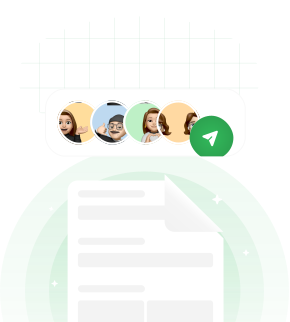
You create the form & share it with customers
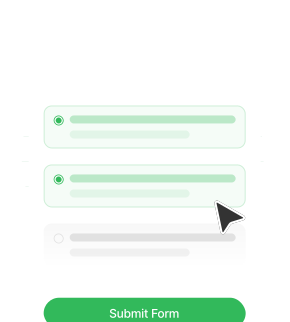
Customer fills in the data and clicks on Submit
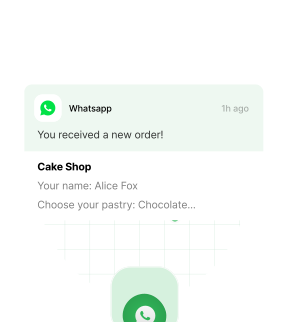
You get the data in WhatsApp from customer's number