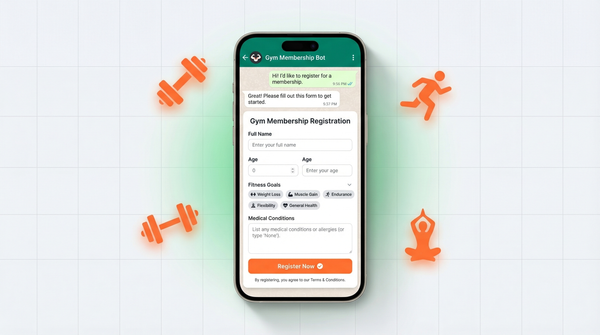
How to use WhatsApp catalog for your products
WhatsApp catalog is a free built-in product showcase. Here's how to set it up, write great listings, and start sharing with customers today.

Most small businesses selling on WhatsApp are doing it the hard way. A customer asks "what do you have?" and you type out a list. They ask for photos. You send them one by one. By the end of the conversation, you've spent 20 minutes and they haven't even ordered yet.
WhatsApp catalog fixes that. It's a built-in product showcase inside WhatsApp Business, and it costs nothing to set up. Here's everything you need to know to use it properly.
What is WhatsApp catalog
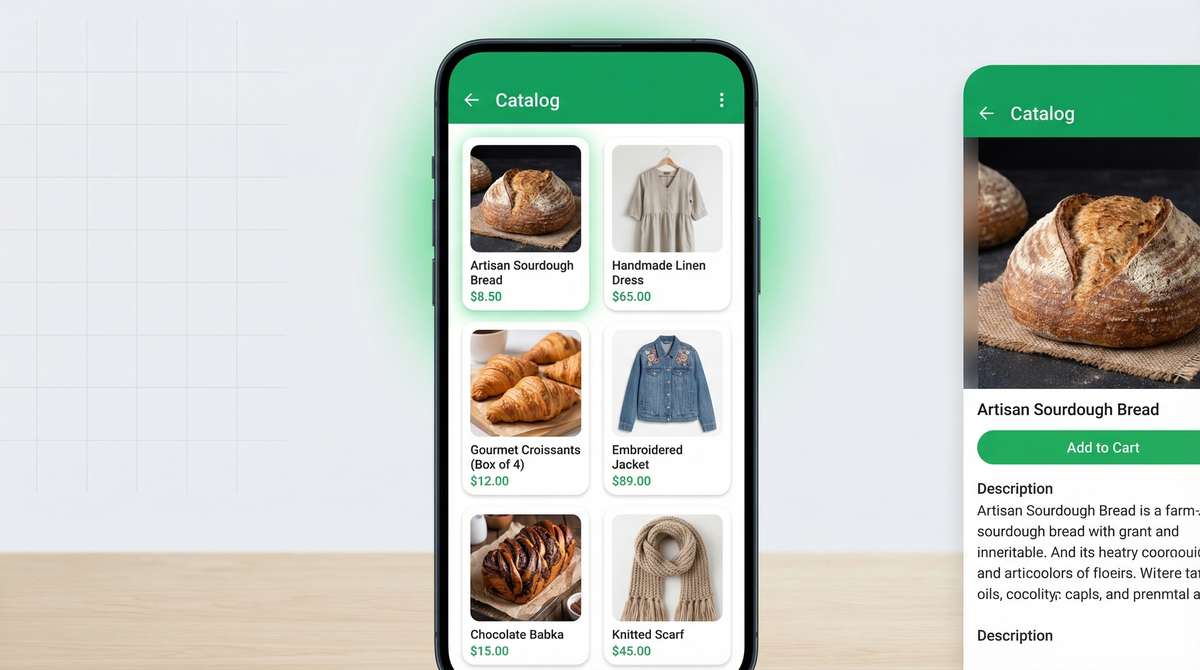
WhatsApp catalog is a free feature inside WhatsApp Business that lets you create a digital storefront. Customers can browse your products without you having to manually send photos or list items in a chat.
Think of it as a mini product page that lives inside the app. Each product gets its own image, name, price, description, and an optional link. For example, a bakery catalog might list each cake with a photo, weight, price, and a link to an order form. You can have up to 500 items in your catalog. If you are still setting up the app itself, read how to set up WhatsApp Business first.
It's not a website. It doesn't have a checkout. But for a small business that mostly sells through WhatsApp, it changes the entire selling experience.
Why use it
No website needed. You don't need to build or pay for an e-commerce store just to show what you sell. The catalog is your storefront, and it's already inside the app your customers use every day. If you want the full picture of what else the app can do, see these WhatsApp Business features most businesses ignore.
Customers browse without leaving WhatsApp. When someone taps your catalog, they stay in the app. No loading a website, no switching apps, no friction. They see your products, tap what they like, and message you directly from the product page.
It builds trust. A catalog makes you look like a real business. Customers see organized product listings with photos and prices instead of a scattered chat history. That professionalism matters, especially when someone is deciding whether to buy from you for the first time.
You stop repeating yourself. Every time you share your catalog link, customers get the full picture. No more typing out the same product list for the hundredth time.
Step-by-step setup
Setting up your catalog takes about 10-15 minutes. Here's exactly how to do it.
Step 1. Open WhatsApp Business on your phone.
Step 2. Tap the three dots in the top right corner, then go to Settings.
Step 3. Tap Business tools, then tap Catalog.
Step 4. Tap Add new item.
Step 5. Add your product photos. You can upload up to 10 images per item. Tap the image icon to add photos from your gallery or take new ones.
Step 6. Fill in the details:
- Name (required): Keep it clear and specific. "Chocolate truffle cake - 500g" beats just "cake."
- Price: Add your price so customers don't have to ask.
- Description: Describe what makes this product worth buying.
- Link: Optional. Use this if you have a product page or order form.
- Item code: Optional. Useful for your own tracking.
Step 7. Tap Save. Repeat for each product.
That's it. Your catalog is live and anyone who visits your WhatsApp Business profile can browse it. If you want a clearer walkthrough for building the form that sits behind your catalog, the help center guide on how to create your first WhatsApp form is the best place to start.
Tips for great product photos
Your photos are doing the selling. A bad photo can kill interest even in a great product. Here are the basics that actually make a difference.
Use natural light. Move near a window. Natural light is flattering and free. Avoid harsh overhead lighting or dark shadows. The goal is clear, bright, and honest.
Use a clean background. A plain white surface, a wooden table, or a simple cloth works well. The product should be the focus, not the mess behind it.
Shoot multiple angles. Show the front, the side, the detail. Customers can't pick up your product and examine it. Give them the next best thing.
Show it in use. If you sell candles, show one lit on a table. If you sell clothing, show someone wearing it. Context sells. It helps customers imagine the product in their own life.
You don't need a camera. A modern smartphone shot in good light with a clean background will do the job. Consistency matters more than perfection. Keep the same background and lighting across your catalog so the overall catalog design looks cohesive and professional.
Writing product descriptions that sell
Most product descriptions either say too little ("nice cake") or too much (a paragraph no one reads). Here's the formula that works.
Start with the benefit. What does the customer get out of it? "Moist, rich chocolate cake perfect for celebrations" tells them why they want it. "Chocolate cake" tells them nothing.
Price upfront. Don't make people ask. If you're not ready to put a price in the catalog, at least add "Price on request" so they know to message you. Hiding prices creates friction.
Include the key specs. Weight, size, flavor options, variants, what's included. Anything a customer would ask before ordering. Put it in the description so they don't have to.
Keep it short. Two to four sentences. Enough to inform, not enough to overwhelm. If you need more space, use the product link to send them to a fuller page.
Sharing your catalog
The catalog only works if people see it. Here's how to share it.
In chats. When someone messages you asking what you sell, tap the attachment icon, then tap Catalog. You can share the full catalog or a specific product directly in the chat.
Via your catalog link. Go to Settings, Business tools, Catalog. Tap the share icon to get your catalog link. Share it anywhere, in your bio, in a post, via any channel.
On social media. Post your catalog link in your Instagram or Facebook bio. Add it to your story. Share individual product links when you post about specific items.
In your WhatsApp status. Update your status with a catalog link and a "Browse our latest" message. It reaches everyone in your contacts list without you sending a single message.
Catalog limitations
Before you build your whole business around this, it's worth knowing what the catalog can't do.
No cart or checkout. Customers can browse and tap to message you, but they can't add items to a cart and pay. Every order still goes through a chat conversation. If you want to collect payment before the chat starts, here's how to accept payments on WhatsApp.
No inventory management. WhatsApp won't track your stock or hide sold-out items automatically. You have to manually remove or update items when they're unavailable.
No order management. There's no dashboard showing you incoming orders. Everything comes in as a chat message, and you manage it manually.
500 item limit. For most small businesses, that's plenty. But if you run a large inventory, it may not be enough.
The catalog is a discovery tool. It's very good at showing customers what you have. It's not built to handle the actual transaction.
Beyond catalog: collecting orders properly
Here's where most WhatsApp sellers get stuck. A customer browses your catalog, picks something, and messages you. Now the chat looks like this: "I want the chocolate cake." Then you ask for quantity. Then they ask about delivery. Then you ask for their address. Back and forth, five messages deep, and you still don't have everything you need to fulfill the order.
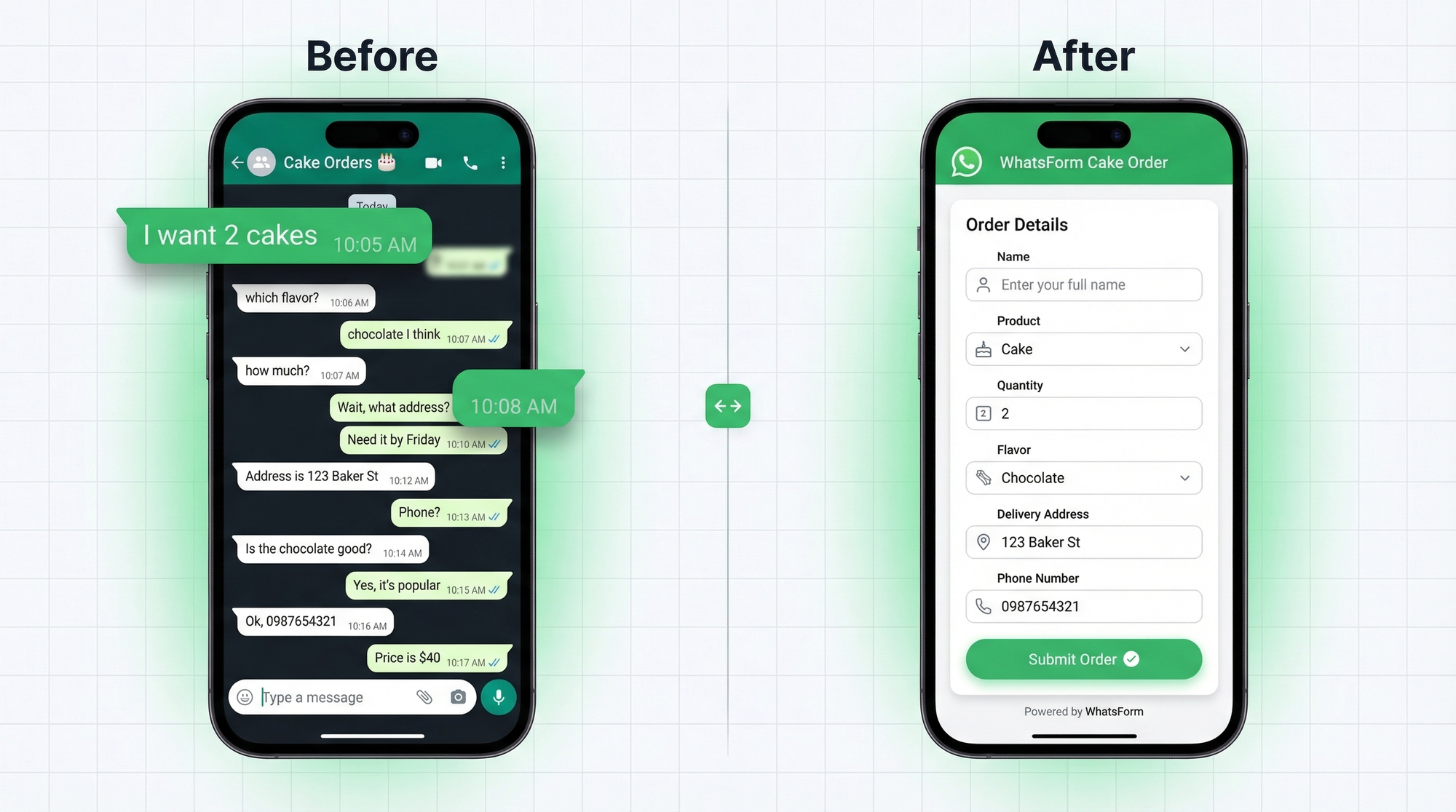
That's the problem collecting orders on WhatsApp properly solves. Instead of a messy back-and-forth, you send customers a structured order form that collects exactly what you need: name, product, quantity, variant, delivery address, phone number. All in one shot.
Full disclosure: we built it. WhatsForm lets you create a custom order form that opens directly inside WhatsApp. Customers fill it out and you get a clean, complete order every time. No chasing for details, no misunderstandings, no wasted messages.
You can link your WhatsForm order form directly from your catalog product pages using the link field. When a customer taps on a product and wants to order, they click the link and land on a form that captures everything you need.
It works alongside the catalog. The catalog handles discovery. WhatsForm handles the order. Together they cover the full journey from "what do you have?" to "here's my order."
You can also read more about what a WhatsApp form is if this is new to you, or see how this setup works for online stores in our guide to WhatsApp for e-commerce.
For a detailed walkthrough, check our help center guide on sharing your WhatsForm URL. That is useful when you want to add the same order form link inside each catalog product.
The app is available on Android and iOS. If you're on WordPress, there's a plugin too.
Start with the catalog, then build from there
WhatsApp catalog is one of the most underused tools in small business. It takes less than an hour to set up, it makes you look more professional, and it saves you time every single time a customer asks what you sell.
Set it up today. Add your best products. Link your order form. And stop typing out your product list by hand.