How to manage job applicants on WhatsApp
You posted a job and applications are flooding your WhatsApp. Here is how to organize, screen, and communicate with candidates without losing your mind.

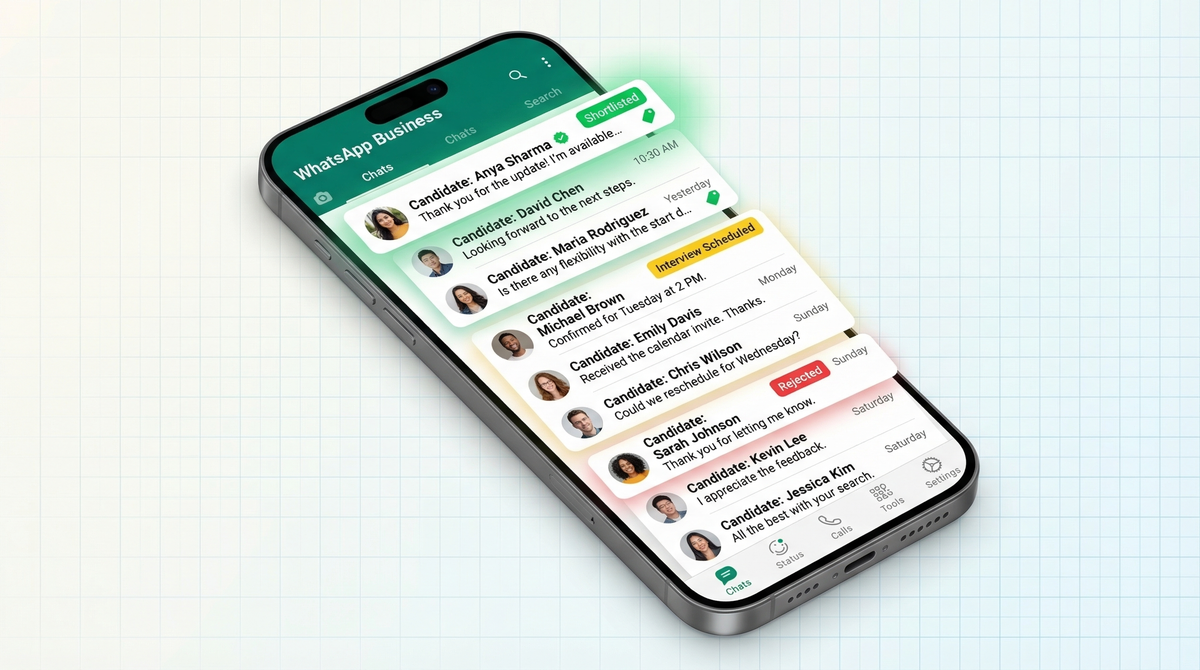
You set up a WhatsApp job application form, shared it everywhere, and the applications started coming in. Now your WhatsApp is flooded with 50+ candidates, all mixed in with your regular chats. Congratulations. The hard part just started.
Managing applicants over WhatsApp without a system is a nightmare. Messages get buried. Promising candidates fall through the cracks. You end up interviewing the wrong people and ghosting the right ones. This guide is how you avoid all of that.
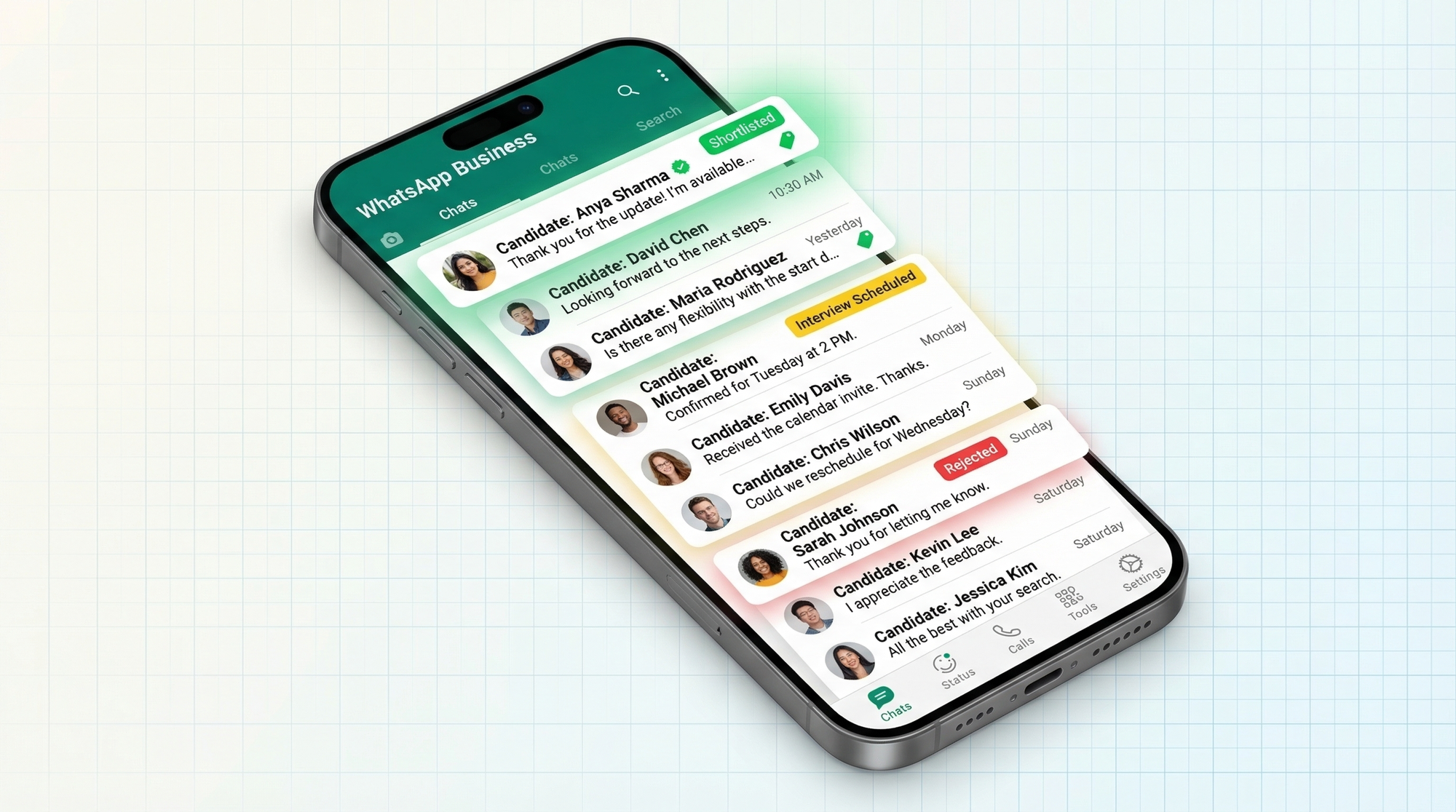
Applications are coming in. Now the real work starts.
If you used a WhatsApp job application form, or even a more general WhatsApp registration form for walk-in hiring drives, every applicant landed in your inbox with their details structured and ready to review. That's the best-case starting point. But even then, 50 unreviewed chats with zero organization is chaos waiting to happen.
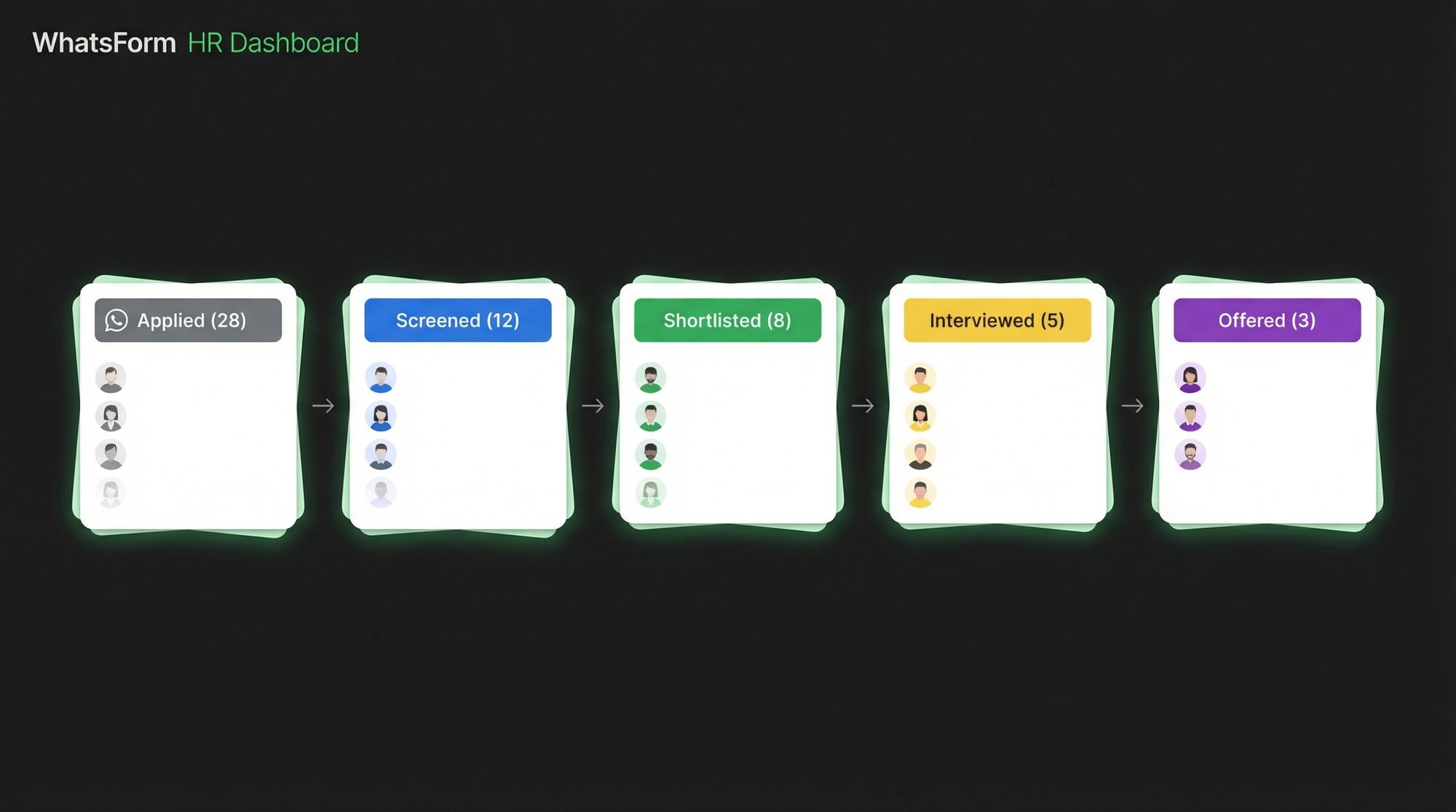
The first thing you need is a pipeline. A way to move candidates through stages so you always know who's where and what happens next. WhatsApp Business gives you the tool to do exactly that: labels.
Organizing with labels
Labels in WhatsApp Business let you tag individual chats and filter them by color. Most people use them for basic stuff like "new customer" or "payment pending." But for hiring, you can build a full applicant pipeline.
Here's the setup we recommend:
- New (grey). every applicant starts here
- Reviewed (blue). you've read their application
- Shortlisted (green). they're worth a conversation
- Interview Scheduled (yellow). interview confirmed
- Offered (purple). offer sent
- Rejected (red). not moving forward
Every time you act on a candidate, update the label. This takes two seconds per chat. It means you can open WhatsApp at any point and instantly see your pipeline at a glance. No spreadsheet needed.
WhatsApp also lets you filter your chat list by label, so you can pull up every "Shortlisted" candidate in one tap. That's your daily working view during active hiring.
Quick screening checklist
Before you move anyone past "Reviewed," do a 90-second screen. You're checking for three things:
- Experience. Do they meet your minimum? Don't negotiate this down. If your form asked for 2+ years and they have 6 months, move on.
- Availability. Full-time, part-time, immediate, 30-day notice? If it doesn't match your timeline, it doesn't matter how strong the candidate looks right now.
- Salary expectation. This one filters out 40% of candidates on its own. If their expectation is far above your range, respect everyone's time and move them to Rejected.
Anyone who clears all three: label as Shortlisted. Everything else: Rejected. Don't overthink it. The goal is to get your candidate pool from 50 down to 10-15 in under an hour.
If you're hiring at scale or across multiple roles, you can also export your responses from WhatsForm and review them in a spreadsheet before ever opening WhatsApp. That way you're moving into WhatsApp already knowing who you want to talk to.
Communicating with shortlisted candidates
Once someone is Shortlisted, reach out fast. The best candidates are applying to multiple places. A same-day message puts you ahead of employers who take a week to respond.
Keep your message short, warm, and specific. Here's a template that works:
"Hi [Name], thanks for applying for the [Role] position. We've reviewed your application and we'd love to schedule a brief interview. Are you available this week? I'll share a few time slots."
WhatsApp Business has a Quick Replies feature that lets you save and send template messages with a single tap. Set this up before you start reaching out. It saves time and keeps your tone consistent across dozens of conversations.
One important note: don't send a generic blast to everyone at once. Personalize the name and role at minimum. It makes a real difference, and WhatsApp's per-message format naturally encourages it anyway.
Scheduling interviews
There are two ways to handle this. The manual way: share 3-4 available time slots and ask the candidate to pick one. Simple, works fine for small volumes.
The better way: use a self-scheduling form. Instead of back-and-forth messages to find a time, you share a booking link and the candidate picks directly from your available slots. No coordination overhead. No "does 3pm Tuesday work for you?" chains.
You can create a WhatsApp booking form that shows your available slots and automatically confirms the interview. Candidates appreciate the control, and you eliminate the scheduling noise entirely. The WhatsApp booking template is the quickest way to get this set up.
Once an interview is confirmed, update the label to Interview Scheduled. Done.
Rejection messages that don't burn bridges
Most people either ghost rejected candidates or send a cold, corporate template that makes everyone feel worse. Neither is good. Good candidates remember how they were treated. Even if they're not right for this role, they might be right for the next one, or they might refer someone who is.
Keep rejections short, honest, and warm. Here's a template:
"Hi [Name], thanks so much for applying for the [Role] position. After reviewing all applications, we've decided to move forward with another candidate for this specific role. We really appreciated your interest and your application was strong. We'll keep your details on file for future openings. Wishing you the best in your search."
That's it. No lengthy explanation. No false promises. Just genuine thanks and a door left open. Send it, label the chat Rejected, and move on.
Offer and onboarding
When you're ready to make an offer, WhatsApp is actually a great channel for it. It's fast, it's personal, and the candidate sees it immediately.
Send the offer details clearly: role, salary, start date, key terms. Then ask for a simple confirmation reply. Something like: "Please reply with 'Confirmed' when you're ready to accept."
Once they confirm, follow up with onboarding documents. WhatsApp supports PDFs and documents natively, so you can send an onboarding checklist, welcome letter, or first-day instructions directly in the chat. No email required unless you specifically need a paper trail.
Label the chat Offered, and if they accept, create a separate internal label for onboarding coordination with your team.
Building a talent pool
Not every strong candidate is right for the current role. Someone might be great but want a higher salary than you can offer right now. Or they have solid experience but the wrong specialization for this position, and would be perfect for the next one.
Don't lose them. Save those conversations, add a custom label like "Talent Pool," and leave a note in the chat about what role they'd fit. When a new position opens, you have a warm list to reach out to before you even post publicly.
WhatsApp's broadcast feature is built for exactly this. You can message your talent pool in one go without creating a group. Everyone receives it as a direct message, so it feels personal and not like a mass blast. If you're not sure when to use broadcast vs a group, here's the full breakdown.
A strong talent pool turns your second hire from a 3-week process into a 3-day one.
Managing all of this from your phone
WhatsApp Business is mobile-first, and so is hiring when you're a small team. The entire pipeline we've described, labels, quick replies, broadcasts, document sharing, works from your phone without any additional tools.
Full disclosure: we built WhatsForm. The app brings your job application form, response management, and follow-up workflow together so you're not jumping between tools while hiring.
Download it on Android or iOS. Running WhatsApp forms through WordPress? There's a plugin for that too.
Your WhatsApp hiring pipeline, start to finish
For a detailed walkthrough, check our help center guide on sharing your form link. If you want every applicant saved outside chat too, pair it with the guide on exporting responses from WhatsForm.
Set up your labels before the first application arrives. Screen fast using the three-field checklist. Reach out to shortlisted candidates the same day. Use a booking form for interviews. Send rejection messages that respect people's time. Make offers over chat. Keep strong candidates in a talent pool for next time.
WhatsApp isn't a hiring tool out of the box. But with the right system, it's one of the most efficient recruiting channels you can run. Especially when you're hiring fast and at small volume, where a dedicated ATS is complete overkill.
The whole thing starts with a well-built application form. If you haven't set that up yet, start there. This guide picks up where that one ends.