How to build a registration form that sends to WhatsApp
Stop missing registrations buried in email. Send form submissions directly to WhatsApp for instant processing, faster confirmation, and zero inbox delays.

Most registration forms end up in an inbox nobody checks.
Someone signs up for your course, your event, your membership. The response lands in email. You see it six hours later. By then, the person has moved on or signed up somewhere else.
The fix is simpler than you think. Send registrations directly to WhatsApp. You get notified instantly, respond in seconds, and nothing falls through the cracks.
Why registration forms on WhatsApp
Email notification for form submissions made sense in 2010. Today, most people check WhatsApp more than their inbox. You probably do too.
When a new registration lands on WhatsApp, you see it immediately. You can reply, ask a follow-up question, or send payment details right away. The conversation starts while the person is still engaged.
Compare that to email: delayed notifications, buried threads, no quick reply. For time-sensitive registrations like events or courses with limited seats, speed matters. WhatsApp gives you that speed.
If you run events or classes, check out how others are using WhatsApp booking forms, WhatsApp for education, and WhatsApp customer surveys to see what's possible.
What to capture in a registration form
Keep the form short. The more fields you add, the more drop-offs you get. Stick to what you actually need to process the registration.
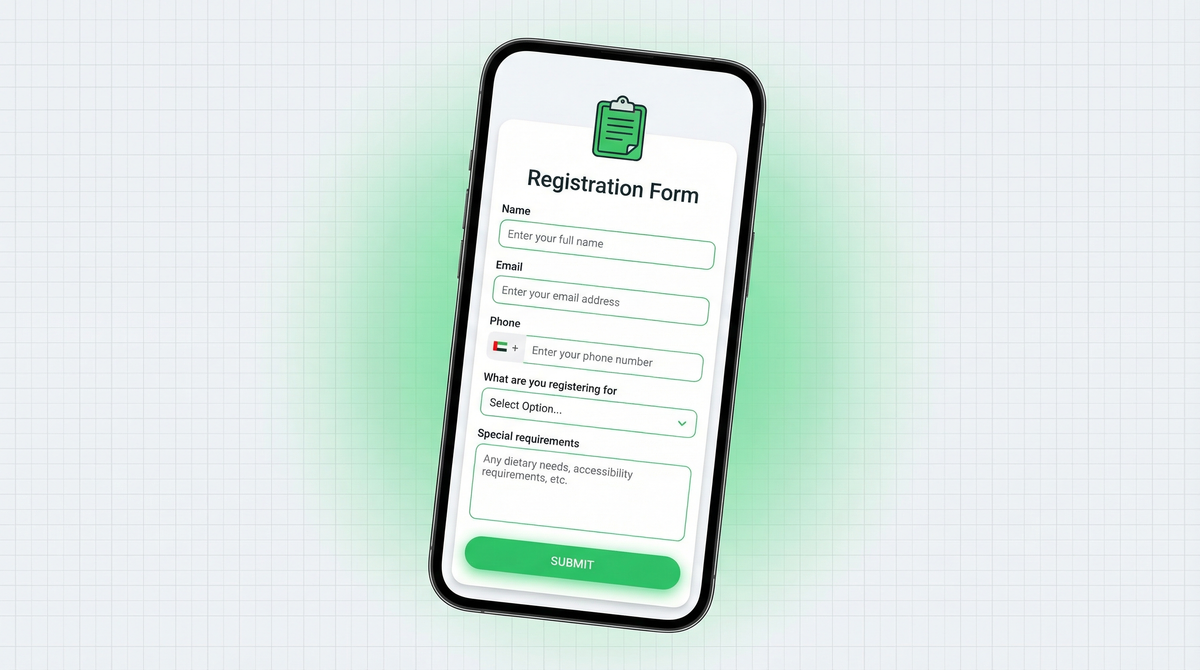
Core fields for most registrations:
- Full name (required)
- Email address (for sending confirmation or joining links)
- WhatsApp number (so you can follow up directly)
- What they're registering for (dropdown if you have multiple options)
- Special requirements (dietary, accessibility, level of experience)
- Payment (if there's a registration fee, collect it in the same form)
That's it. Six fields max covers 95% of registration scenarios. You can always collect more later in a WhatsApp conversation once they've registered.
Use cases that work well
Registration forms on WhatsApp work for any situation where you need to manage signups and respond quickly.
Course registration. Students fill the form, you get notified, send them the access link or payment details on WhatsApp before they close the tab.
Event signup. Conferences, webinars, workshops, meetups. Registrant fills in their details, you confirm their spot and send the event link via WhatsApp.
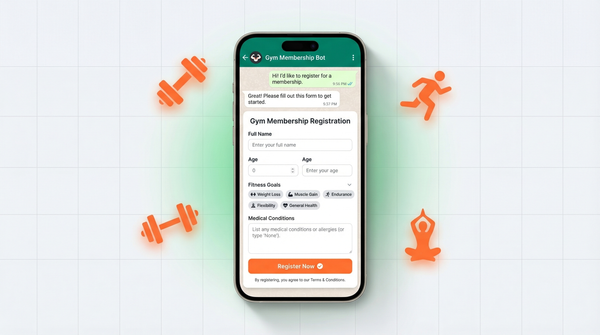
Membership enrollment. Gyms, clubs, communities. Collect member info and onboard them personally through WhatsApp.
Workshop enrollment. Limited-seat workshops where you need to confirm spots fast and communicate details directly.
Waitlists. When something is full, collect waitlist signups. When a spot opens, you can reach out on WhatsApp in seconds.
Step-by-step with WhatsForm
Full disclosure: we built it. WhatsForm is a form builder that delivers responses to WhatsApp instead of email or Google Sheets. Here's how to set up a registration form.
Step 1: Create your form. Sign in to WhatsForm and create a new form. Name it something clear, like "Course Registration" or "Workshop Signup". Follow the step-by-step guide to create your first form if you're new.
Step 2: Add your fields. Add the fields you identified above. Name, email, phone, what they're registering for, any special requirements. Use dropdown fields for options with multiple choices so submissions are clean and consistent.
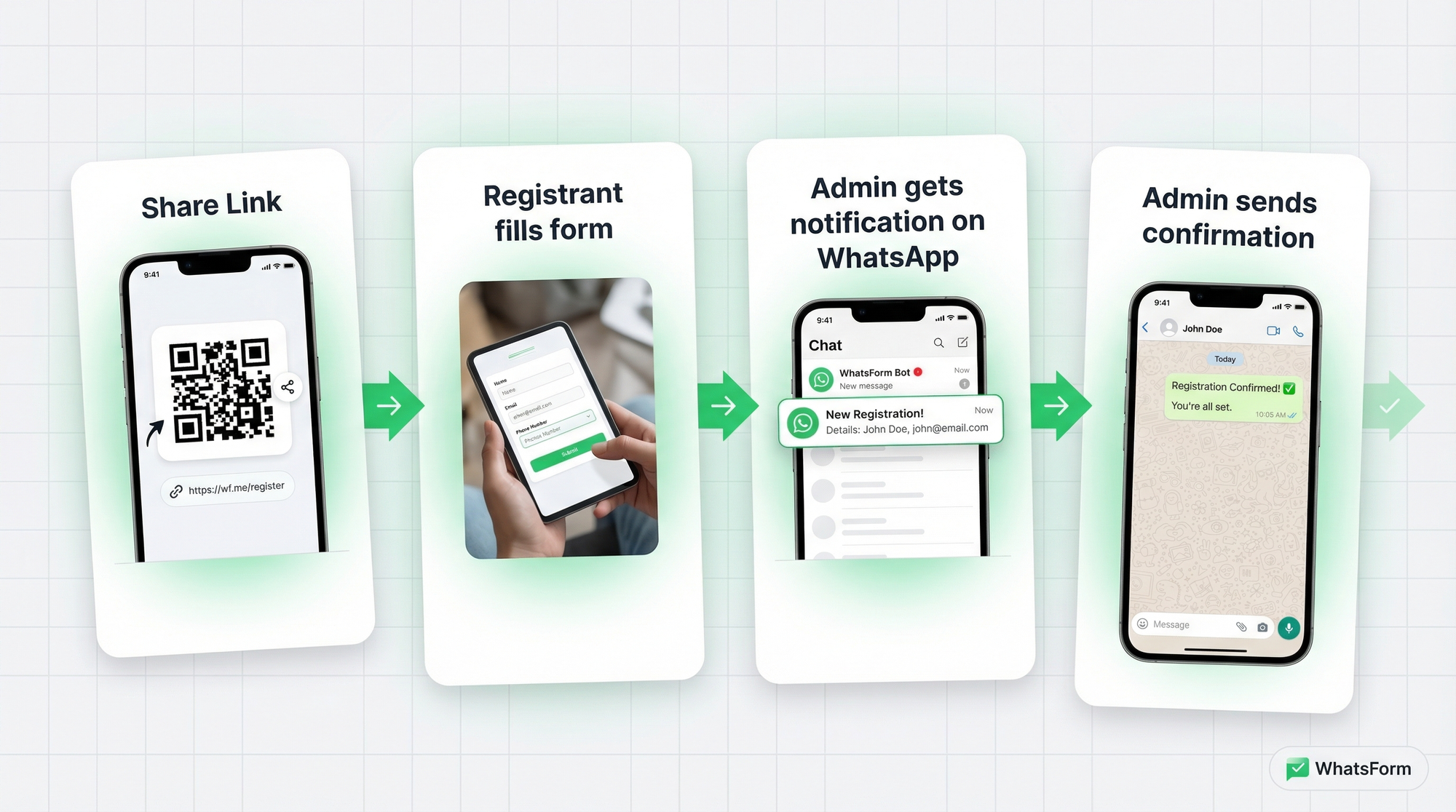
Step 3: Connect your WhatsApp. Enter the WhatsApp number where you want registrations delivered. This can be your personal number or a WhatsApp Business number. Every time someone submits the form, you'll get a WhatsApp message with their details.
Step 4: Share the link. Copy your form link and share it wherever your audience is. Add it to your Instagram bio, email signature, website, or send it directly to interested people. If you need the exact steps, the help center guide on sharing your WhatsForm URL covers it. You can also get a QR code for offline events and printed materials.
Adding payment to registration
If there's a fee, collect it in the same form. Don't make people fill the form and then chase them for payment separately. That's two friction points where you can have one.
WhatsForm supports payment collection inside forms. Add a payment field, set the amount, and registrants pay as part of the submission. You get a notification on WhatsApp that includes payment confirmation alongside their registration details.
Check the guide on accepting payments inside WhatsForm to set it up. It takes about five minutes.
This works well for courses, workshops, and any event with a paid ticket. The registration and payment are handled together, and you have a clean record of who paid.
Confirmation messages
Once someone registers, they want to know it worked. Set up an auto-reply that goes out immediately after submission.
A good confirmation message does three things:
- Confirms the registration ("You're registered for X")
- Tells them what happens next ("We'll send the Zoom link 24 hours before")
- Gives them a contact point ("Reply here if you have questions")
WhatsForm lets you set a custom confirmation message that's sent automatically after every submission. Keep it short, warm, and specific. Mention the name of what they registered for so it feels personal, not automated.
You can also follow up manually from your WhatsApp for things like payment confirmation, event reminders, or joining instructions. Since the conversation is already in WhatsApp, it takes five seconds.
Managing registrations
As registrations come in, you need a way to track who's where in the process. WhatsApp Business labels are perfect for this.
Create four labels and apply them as you process each registration:
- Registered. form submitted, not yet processed
- Paid. payment confirmed
- Confirmed. spot reserved, details sent
- Waitlisted. full, on the waiting list
This gives you a clear visual dashboard in WhatsApp Business. If you are still deciding between regular WhatsApp and the business app, read WhatsApp vs WhatsApp Business first. You can see at a glance how many people are in each stage and prioritize your follow-ups.
For records, export all submissions to Google Sheets. WhatsForm lets you export responses so you have a full spreadsheet of registrations with timestamps, names, emails, and payment status. Useful for event day, attendance tracking, or end-of-program reports.
Getting started
If you're running registrations for a course, event, workshop, or membership, set this up today. It takes less than 20 minutes and the difference in response speed is immediately noticeable.
For a detailed walkthrough, check our help center guide on creating your first form.
Create a free registration form on WhatsForm and start getting signups on WhatsApp.
Need a head start? Need a head start? Start with our WhatsApp booking form guide for a fast registration-style setup, then customise it for your use case in a few clicks.
Manage registrations on the go with the WhatsForm app: