How to use WhatsApp QR codes for your business
Print a QR code on your menu, business card, or packaging. Customers scan and land in WhatsApp instantly. Here's the complete guide to using WhatsApp QR codes for your business.

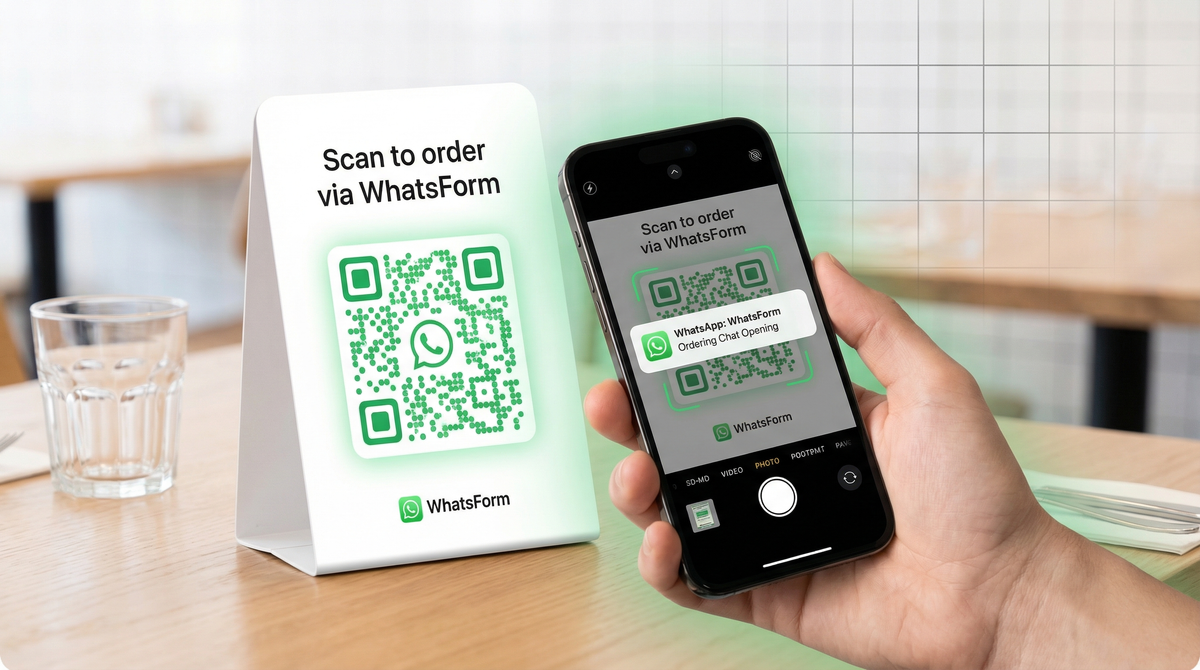
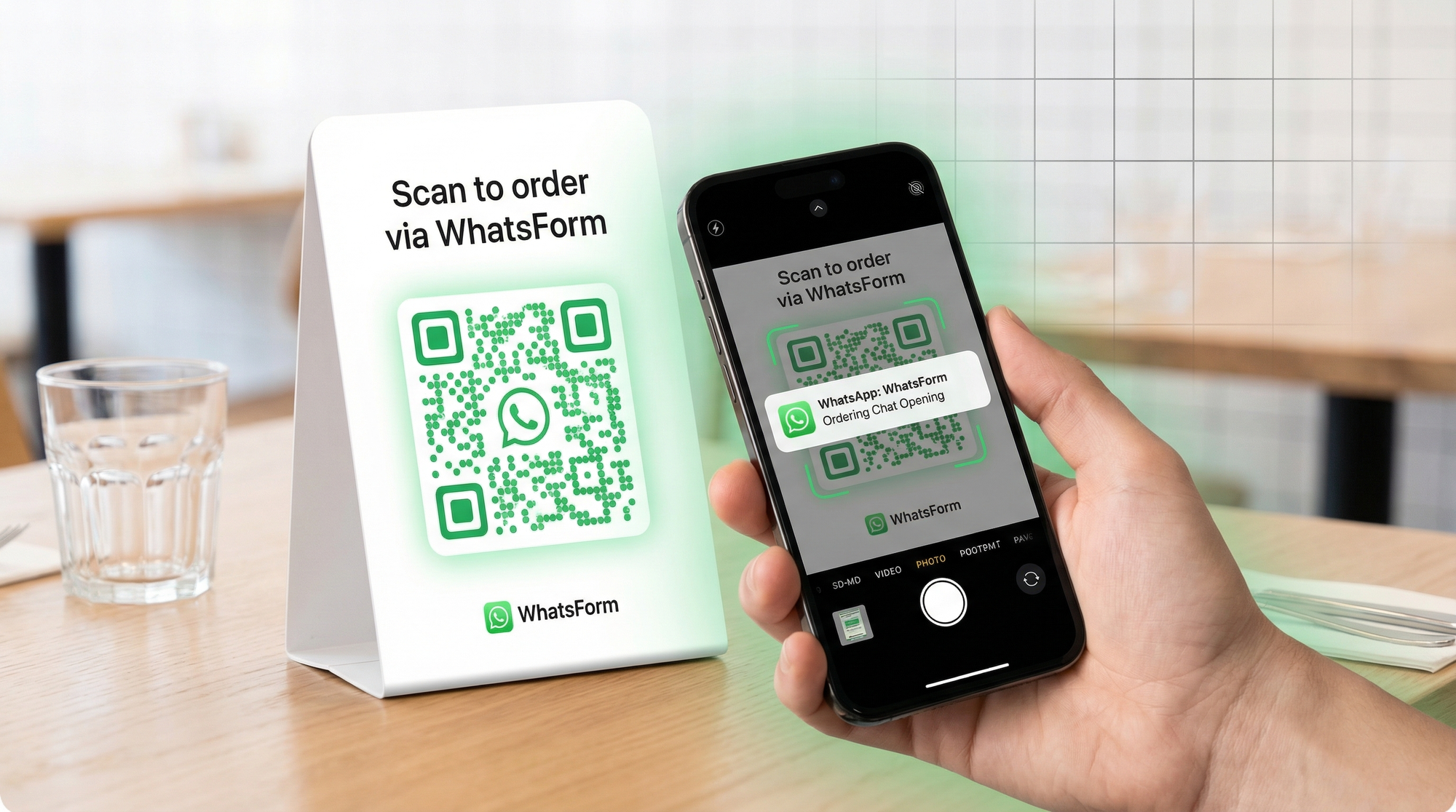
Someone walks into your restaurant. They want to order, ask a question, or get more information. Instead of hunting for your phone number or filling out a clunky web form, they scan a QR code on the table. WhatsApp opens. They send a message. Done.
That's the power of a WhatsApp QR code. It bridges offline moments with online conversations in a single tap, no typing numbers, no searching your website, no friction at all.
Why WhatsApp QR codes work
The reason is simple: people don't want to type. Entering a phone number manually, even when it's right in front of them, creates friction. Most people won't do it unless they really have to.
A QR code removes that friction completely. One scan and they're in WhatsApp, ready to chat. No app installs, no account creation, no forms to fill before they can talk to you. It's the fastest path from physical world to digital conversation.
The biggest win for businesses is that the customer is already in WhatsApp, the app they use every day. You're not asking them to learn something new. You're just making it easier to reach you.
Where to use them
A WhatsApp QR code works anywhere you have physical presence or printed material. Here are the placements that consistently perform well:
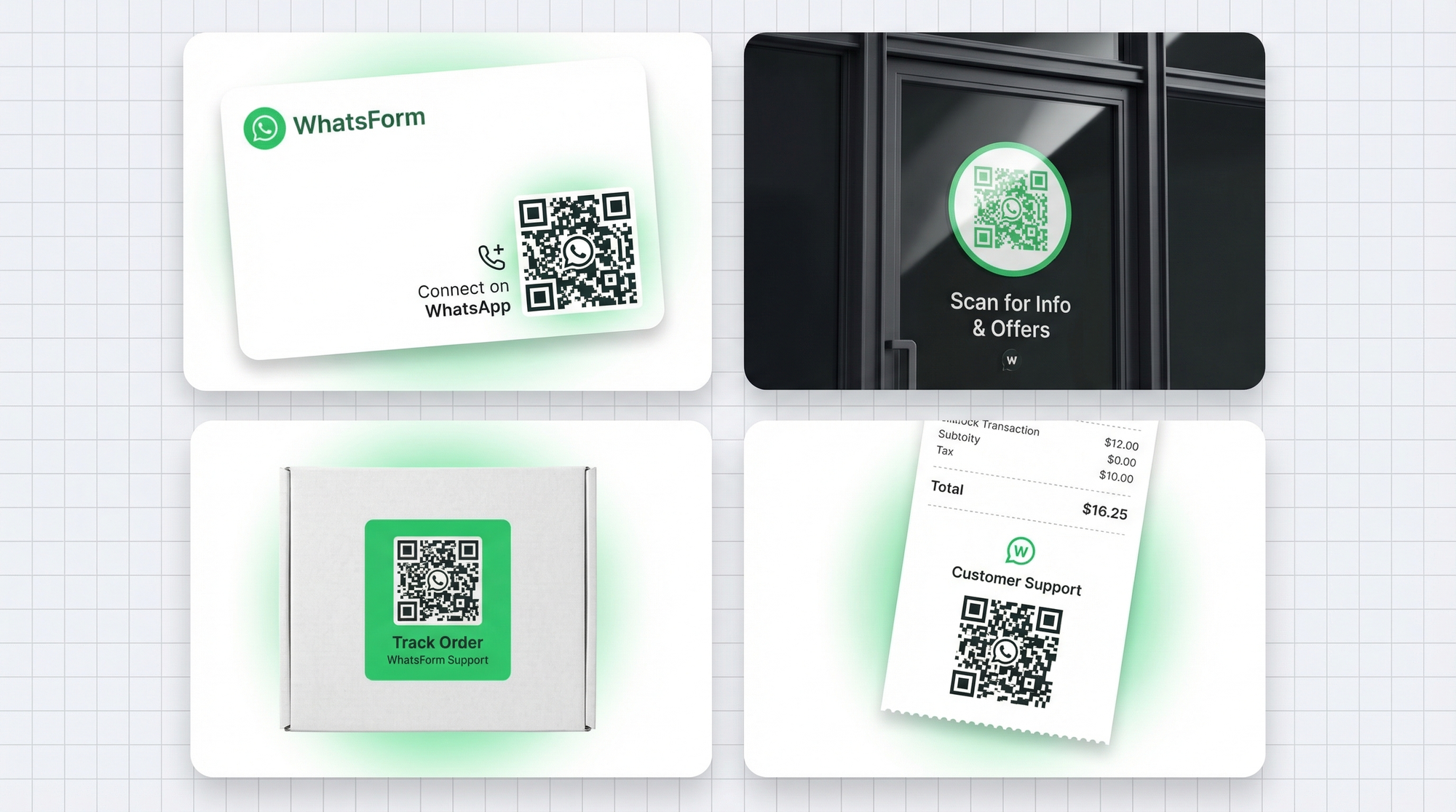
- Business cards. Add a QR code to the back. Instead of hoping someone saves your number, they scan and you're already in their WhatsApp.
- Restaurant menus and table tents. Customers can scan to ask about allergens, place orders, or give feedback without calling the counter.
- Product packaging. After purchase, customers scan to get support, register their product, or ask questions about usage.
- Store windows. Even when your shop is closed, people passing by can scan and start a conversation that you'll pick up the next morning.
- Receipts. After a transaction, invite customers to reach out with questions or get support. A QR code on the receipt is the lowest-effort way to do this.
- Event banners and booth displays. At trade shows or events, people can scan to connect without exchanging business cards.
Creating a basic WhatsApp QR code
The simplest version starts with a wa.me link. This is WhatsApp's official deep link format:
https://wa.me/[your-number]
Replace [your-number] with your full international number, including country code. For example, if you're in the US: https://wa.me/15551234567
Once you have that link, paste it into any free QR code generator (QR Code Monkey, goqr.me, and Canva all work fine). Download the image. That's your basic WhatsApp QR code.
We've put together a list of free WhatsApp tools, plus our guides on adding a WhatsApp button to your website and sending Google Form responses to WhatsApp that includes QR generators and other useful resources if you want to explore further options.
QR codes with pre-filled messages
A basic wa.me link opens WhatsApp and lets the customer type their own message. That's fine. But you can do better.
By adding a text parameter to the link, you pre-fill the message field. When someone scans the code, WhatsApp opens with a message already written for them. They just tap send.
Here's what the link looks like:
https://wa.me/15551234567?text=Hi%2C%20I%20saw%20your%20menu%20and%20want%20to%20order
Why this matters: pre-filled messages remove the blank-page problem. Many customers hesitate because they're not sure what to say. A pre-filled prompt like "Hi, I'm interested in your catering options" or "I need help with my order" gets them started immediately.
You can customize the pre-filled text for each QR code placement. The one on your menu can say "I'd like to place an order." The one on your receipt can say "I have a question about my recent purchase." If you're using QR codes for bookings, our WhatsApp booking form guide shows how to collect the right details before the chat even starts.
QR codes that open forms
Pre-filled messages are great. But they still result in unstructured chat. Someone scans, WhatsApp opens, they send a message. Now you have to ask follow-up questions to get the information you actually need.
There's a better way: QR codes that open a WhatsApp form.
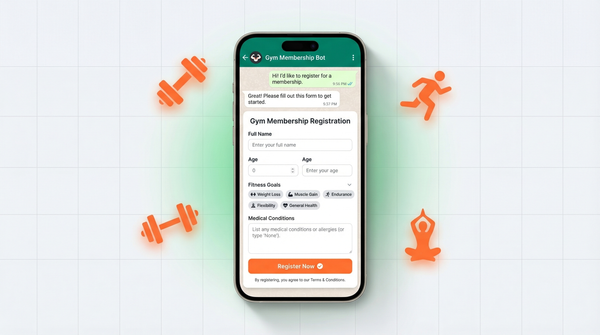
Instead of linking to a plain wa.me link, you link to a WhatsForm. When someone scans, a form opens asking for exactly what you need, name, order details, date, location, whatever matters for your use case. They fill it out and submit. You receive a structured, formatted message in WhatsApp with all the information organized.
Full disclosure: we built WhatsForm. It's a form builder that collects structured data through WhatsApp. Instead of a chaotic back-and-forth, you get clean, actionable responses every time.
This is especially useful for:
- Taking orders from a menu QR code
- Collecting booking requests at a physical location
- Handling product support inquiries from packaging
- Capturing leads at events
You can get a QR code for any WhatsForm directly from your dashboard. No extra tools needed. If you want a practical use case, see how restaurants use WhatsApp order forms and how businesses use WhatsApp contact forms on their websites.
Design tips
A QR code that nobody scans is just a decorative square. Here's how to make sure yours actually gets used:
Size it properly. For print materials, the minimum recommended size is 2.5cm x 2.5cm (about 1 inch square). Smaller than that and many phones will struggle to scan. On a business card, go at least 1.5cm. On a banner, go much bigger.
Keep the contrast high. Dark module on light background, always. Avoid placing the QR code on busy backgrounds or using brand colors that reduce contrast. If the modules and background are too similar in shade, scanners fail.
Test before you print. This sounds obvious, but many people skip it. Before sending your file to the printer, scan the code yourself with two or three different phones. Test from different distances and angles.
Add a call-to-action near the code. A QR code alone leaves people guessing. Add a short line next to it: "Scan to order on WhatsApp" or "Scan to chat with us." It removes ambiguity and increases scan rates noticeably.
Add error correction. Most QR generators let you set error correction level. Set it to H (highest). This means the code still works even if part of it is damaged, dirty, or slightly obscured, which happens a lot with printed materials.
Tracking scans
How do you know which QR code is driving conversations? You use UTM parameters.
Instead of a plain link, you add tracking parameters to the URL:
https://wa.me/15551234567?text=Hi%20I%20want%20to%20order&utm_source=menu&utm_medium=qr&utm_campaign=restaurant-table
Now when someone scans the menu QR code, the link they follow includes those UTM parameters. If you're using a WhatsForm, we capture these in the response data so you know exactly where each lead came from.
Use different UTM parameters for every placement. Menu, business card, store window, receipt. Each one gets its own QR code with its own tracking. Over time you'll see which locations are generating the most conversations and optimize from there.
You can also use a URL shortener like Bitly to track clicks before WhatsApp opens, though this adds a redirect step that slightly increases load time.
Getting started
The fastest way to get a working WhatsApp QR code for your business is through WhatsForm. Here's the path:
- Create a free WhatsForm for your use case (order form, booking, contact, support)
- Open your form in the WhatsForm dashboard
- Go to Share. You'll see a QR code ready to download
- Add it to your print materials with a clear call-to-action
For a detailed walkthrough, check our help center guide on how to get a QR code for your WhatsForm. If you want to embed the same flow on your site too, our WordPress guide covers the plugin setup.
You can manage all your forms and view responses on the go with the WhatsForm app:
QR codes are one of the easiest wins in offline-to-online conversion. Print them once, and they keep working. Every scan is a customer who wanted to talk to you, met zero friction, and arrived in WhatsApp ready to engage. That's the setup worth building.